This guide walks you through the process of creating and configuring a new role in Fairground, from importing job descriptions to setting up interview rounds and screeners.
All Roles Dashboard
The Roles dashboard is your central hub for managing all open positions. Access it from the left sidebar under "Roles" in the Platform section.
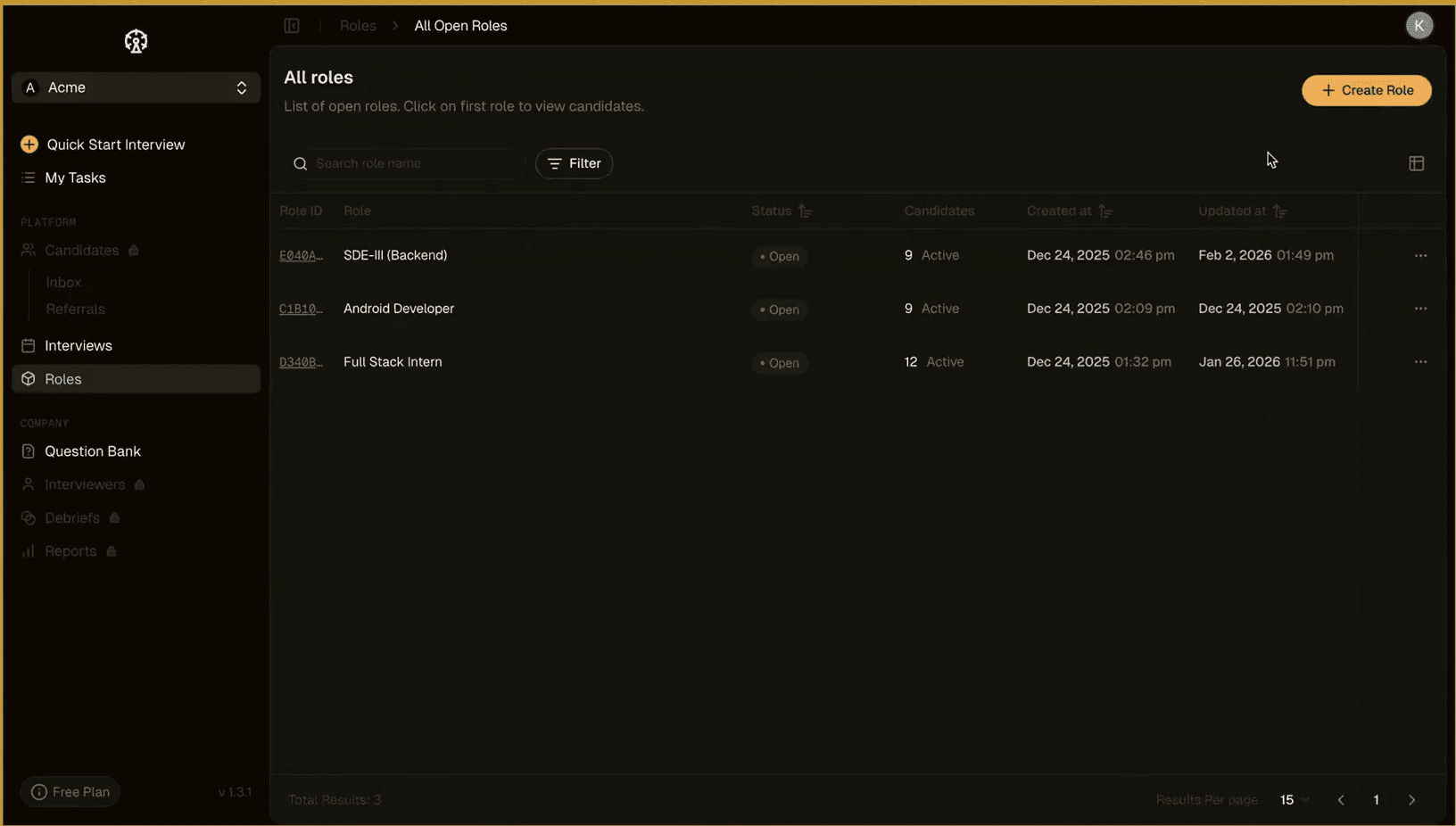
All roles dashboard with role list
Dashboard overview
Role list: View all open roles with status indicators (Open, Draft)
Candidates column: Shows number of active candidates per role
Search & filter: Find roles quickly using the search bar and filter options
Create Role button: Start the role creation process (top right)
Role details: Click any role to view candidates and full configuration
Creating a new role
Click the "+ Create Role" button in the top right corner to begin setting up a new position.
Getting Started
The role creation process begins with three flexible options to jumpstart your setup.
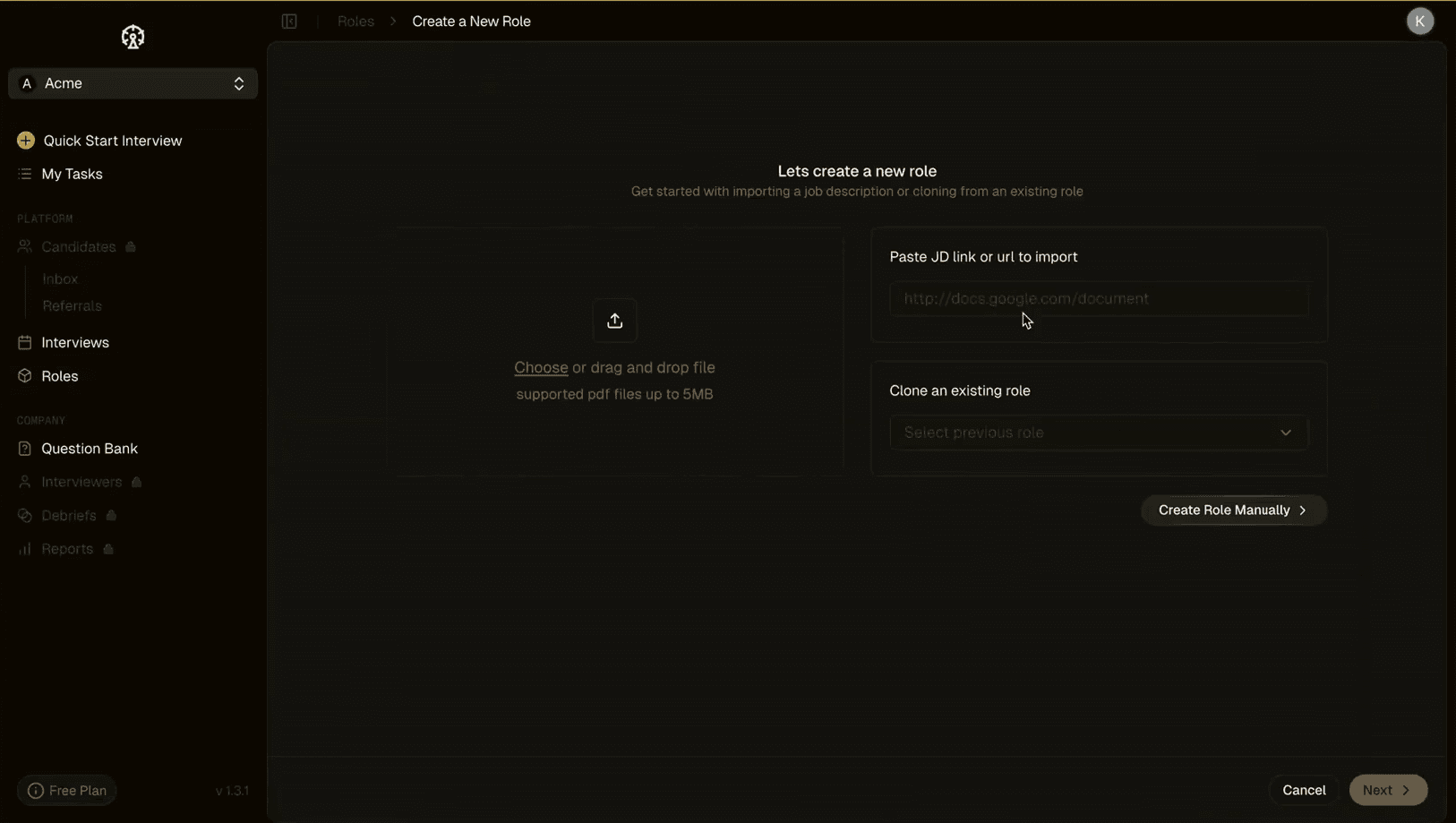
Create a new role starting options
Import options
Three ways to create your role:
Import from JD: Paste a job description link or URL from Google Docs, Notion, or other platforms. The system automatically extracts relevant details.
Upload JD file: Drag and drop or choose a PDF job description (up to 5MB). The platform parses the content to pre-fill role details.
Clone existing role: Select a previous role to duplicate its configuration, saving time for similar positions.
Alternatively, click "Create Role Manually" to start from scratch with a blank template.
Role Overview
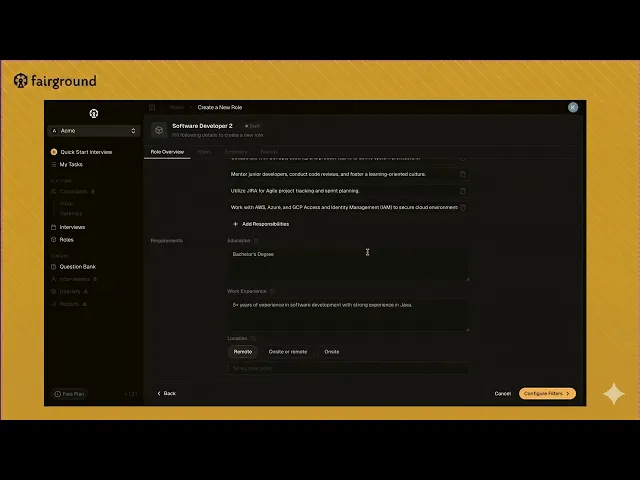
The Role Overview tab captures essential job details from the job description
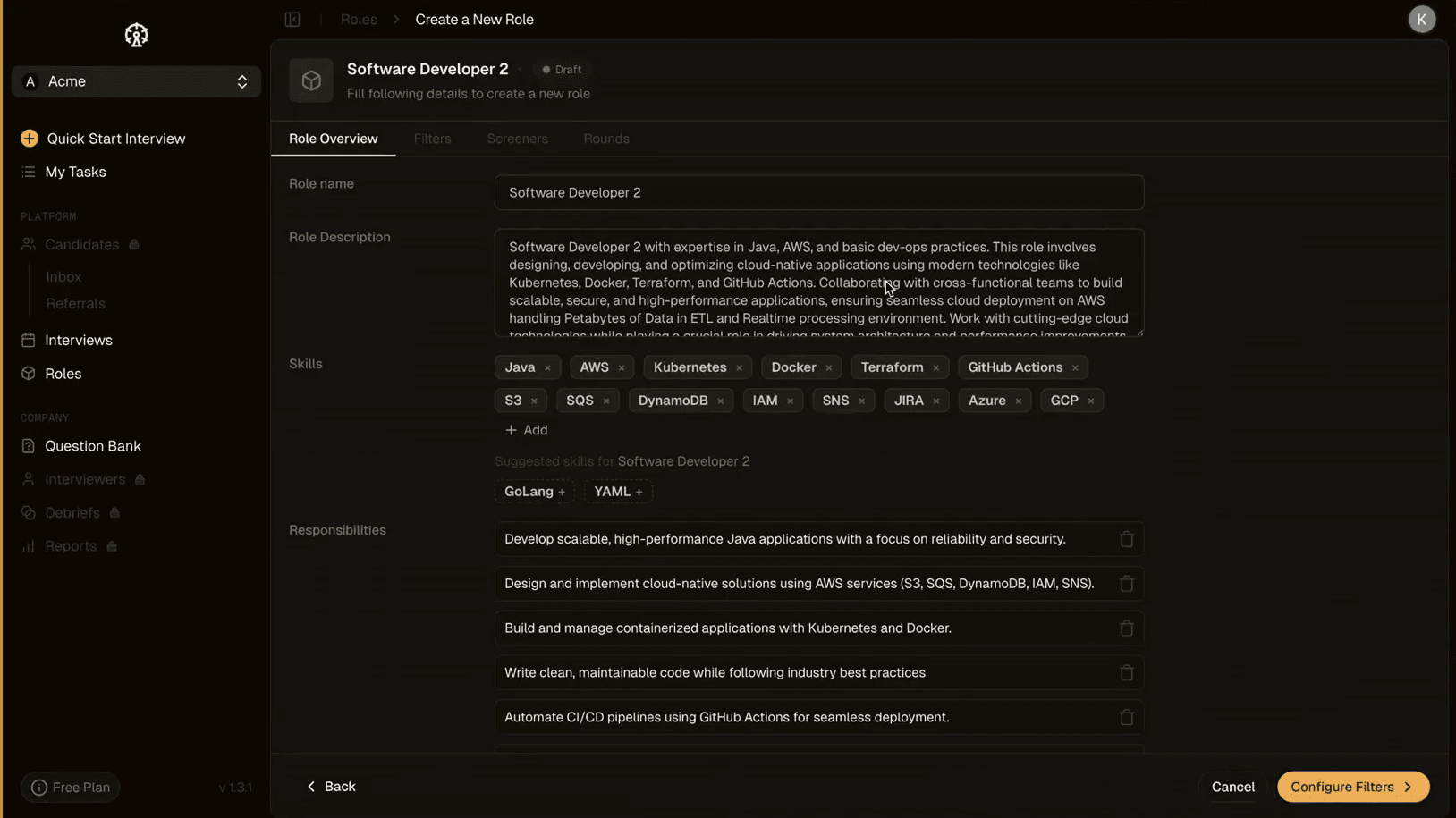
Role overview with details
Basic information
Role name: Position title as it appears to candidates
Role Description: Comprehensive description of responsibilities, qualifications, and team context
Skills: Add technical and soft skills relevant to the role (pre-populated from JD if imported)
Responsibilities: List key job responsibilities with checkbox format
Managing skills
Review auto-suggested skills based on role description
Add additional skills using the "+ Add" button
Remove irrelevant skills by clicking the X icon
Skills inform candidate filtering and scoring weights
Adding responsibilities
Click "+ Add Responsibilities" to include additional duties. Each responsibility appears as a checkable item, making it easy to evaluate candidates against specific requirements.
Requirements & Filters
Configure the baseline qualifications and location preferences for candidate screening.
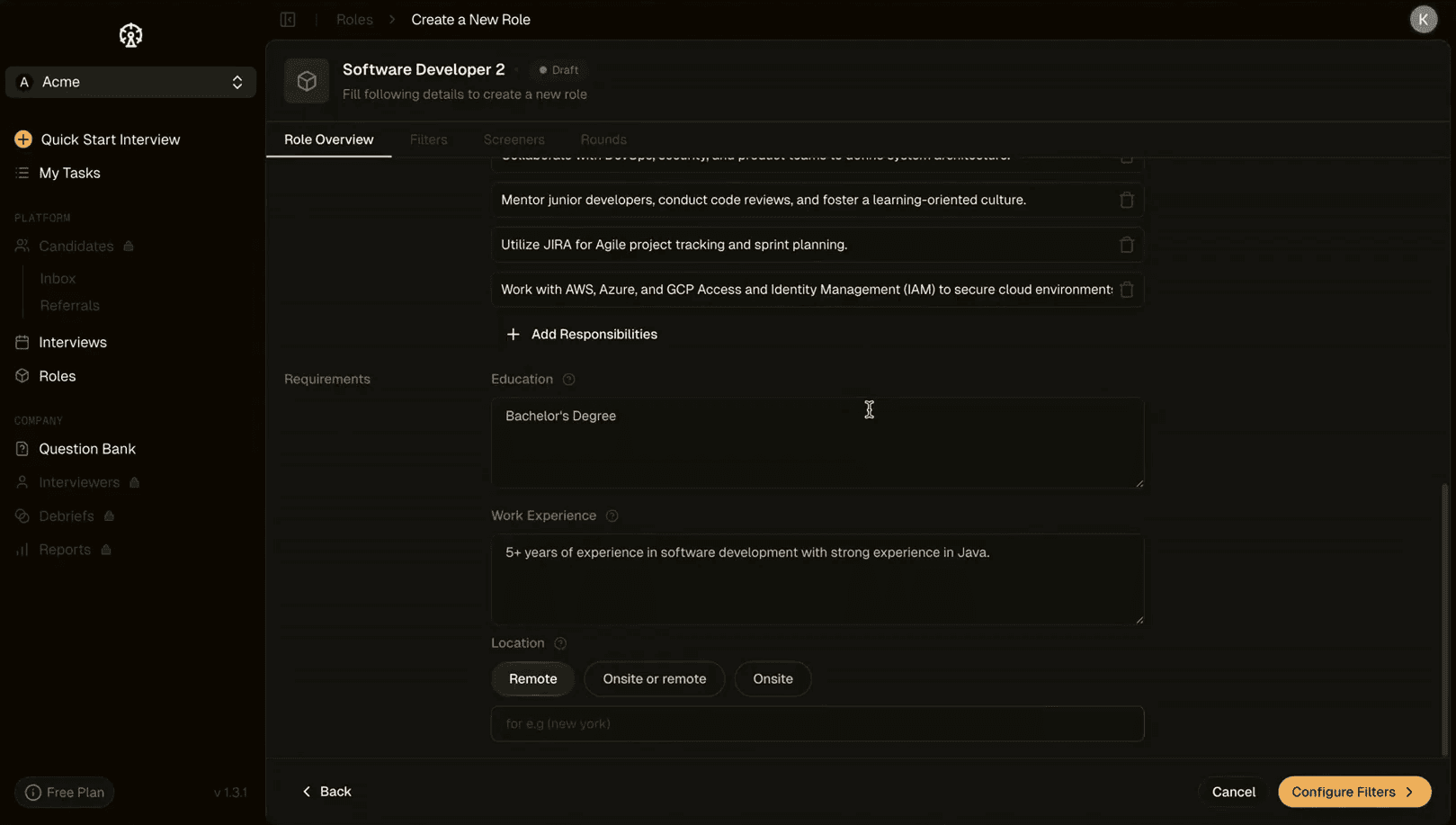
Role requirements section
Education requirements
Specify educational qualifications:
Bachelor's degree in Computer Science or related field
Advanced degrees (Master's, PhD) for senior roles
Specific certifications or licenses if applicable
Information entered here appears in candidate filters and influences scoring.
Work experience
Define experience expectations:
Minimum years of relevant experience
Specific technology or domain experience
Role-specific experience requirements (e.g., "5+ years of experience in software development with strong experience in Java")
Location preferences
Set location requirements:
Remote: Fully remote positions
Onsite or remote: Hybrid flexibility
Onsite: Office-based roles only
Specify cities or regions if location-specific
Location filters help narrow the candidate pool to those who meet geographical requirements.
Filters & Scoring
Define how candidates are evaluated and prioritized through configurable filters and weighted scoring.
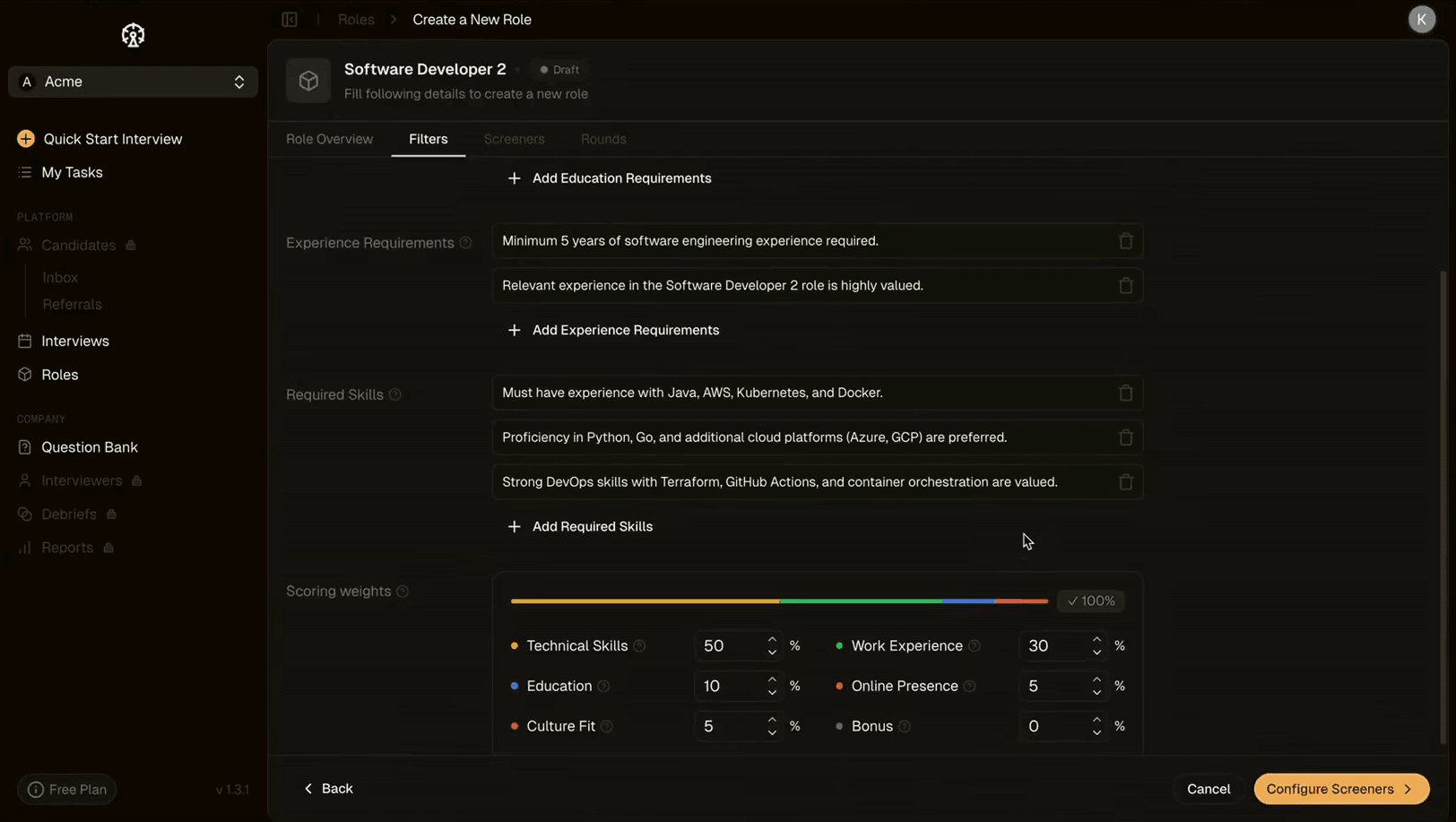
Filters and scoring weights configuration
Experience requirements
Add specific experience criteria that candidates must meet:
Minimum years of software engineering experience
Role-specific experience requirements
Domain expertise expectations
Click "+ Add Experience Requirements" to include additional criteria.
Required skills
Specify must-have technical competencies:
Core technologies (Java, AWS, Kubernetes, Docker)
Additional platforms and tools (Python, Go, Azure, GCP)
DevOps and infrastructure skills (Terraform, GitHub Actions)
Click "+ Add Required Skills" to expand the requirements list. Skills marked here become hard filters in candidate evaluation.
Scoring weights
Customize how different factors contribute to candidate scores:
Technical Skills: Weight given to technical proficiency
Work Experience: Weight for years of relevant experience
Education: Weight for educational background
Online Presence: Weight for online proof of work (github, personal website/blog)
Culture Fit: Weight for alignment with company values
Bonus: Additional points for exceptional qualifications
Adjust percentages using the sliders to reflect your hiring priorities. The total must equal 100%.
Screeners
Screeners are initial evaluation rounds that help filter candidates before live interviews. They are AI-powered to help you talk to more candidates.
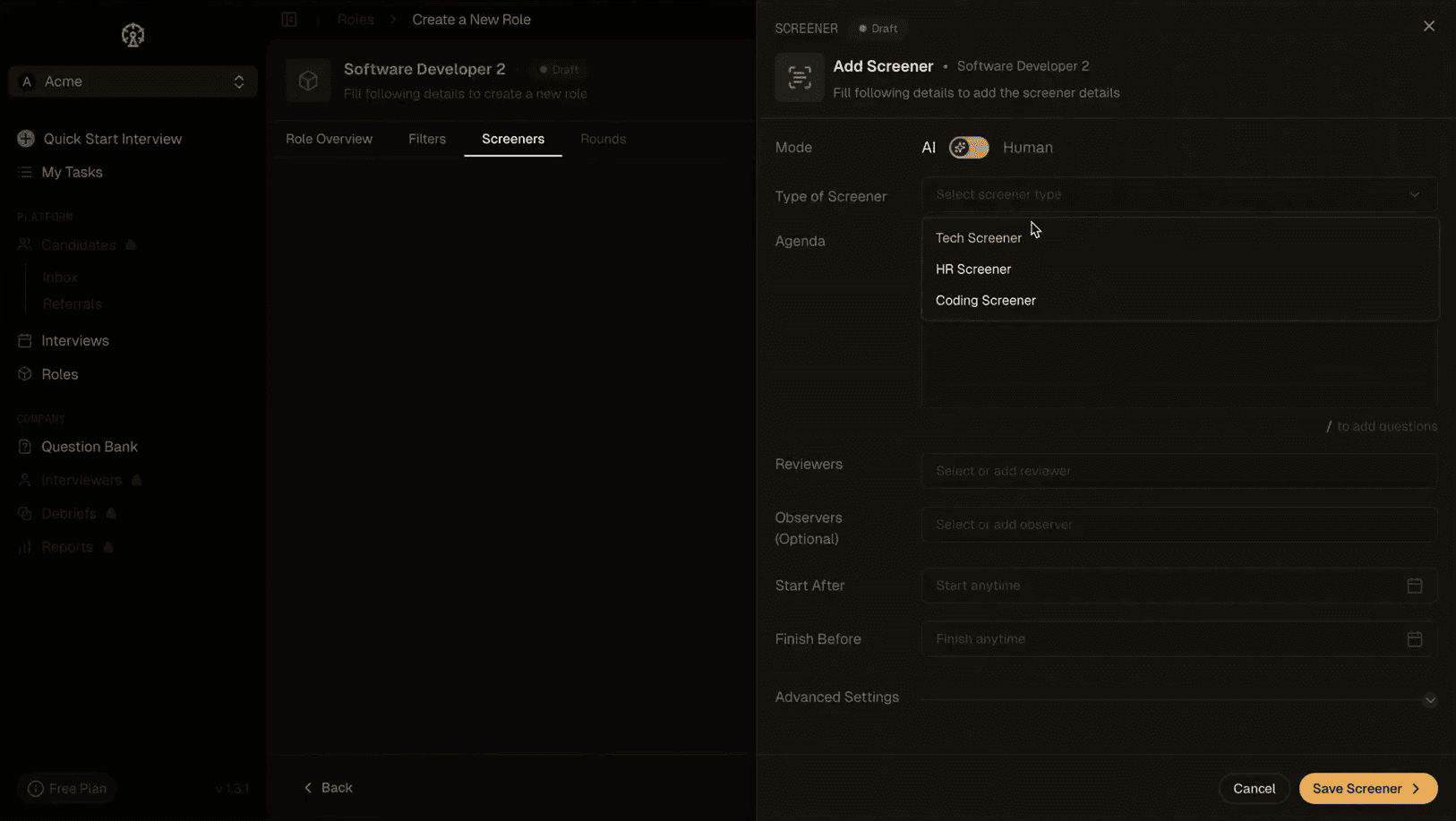
Add screener modal with type selection
Screener types
Choose from three screener formats:
Tech Screener: Technical assessment with coding questions
HR Screener: Culture fit and background evaluation
Coding Screener: Pure programming challenge
Mode selection
AI Mode: Automated evaluation using AI interviewer (toggle on)
Human Mode: Manual review by team members (toggle off)
AI mode streamlines the screening process while maintaining consistency across candidates.
Configuring screeners
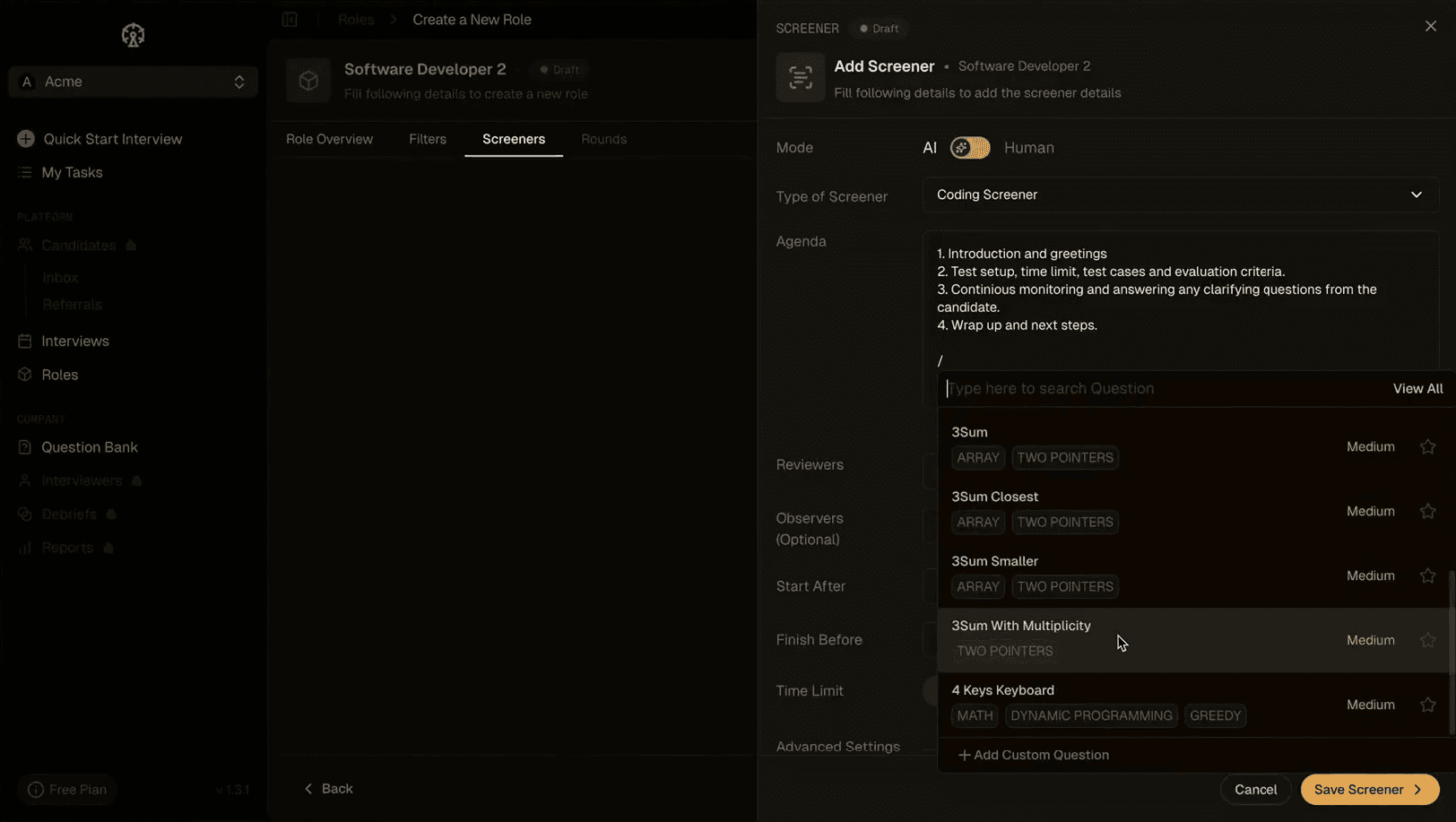
Screener with agenda and question selection
Screener details:
Type of Screener: Select the screening format
Agenda: Define the structure and flow of the screener (auto-generated based on type, customizable)
Questions: Search and select questions from your Question Bank by typing "/" to add questions
Team assignment:
Reviewers: Assign team members who will review submissions or join AI screeners
Observers (Optional): Add stakeholders for visibility without evaluation responsibilities
Click "Advanced Settings" for additional configurations around related to video recording and proctoring
Click "Save Screener" to add it to the role's interview pipeline.
Rounds
Interview rounds represent live interview stages that candidates progress through after passing screeners.
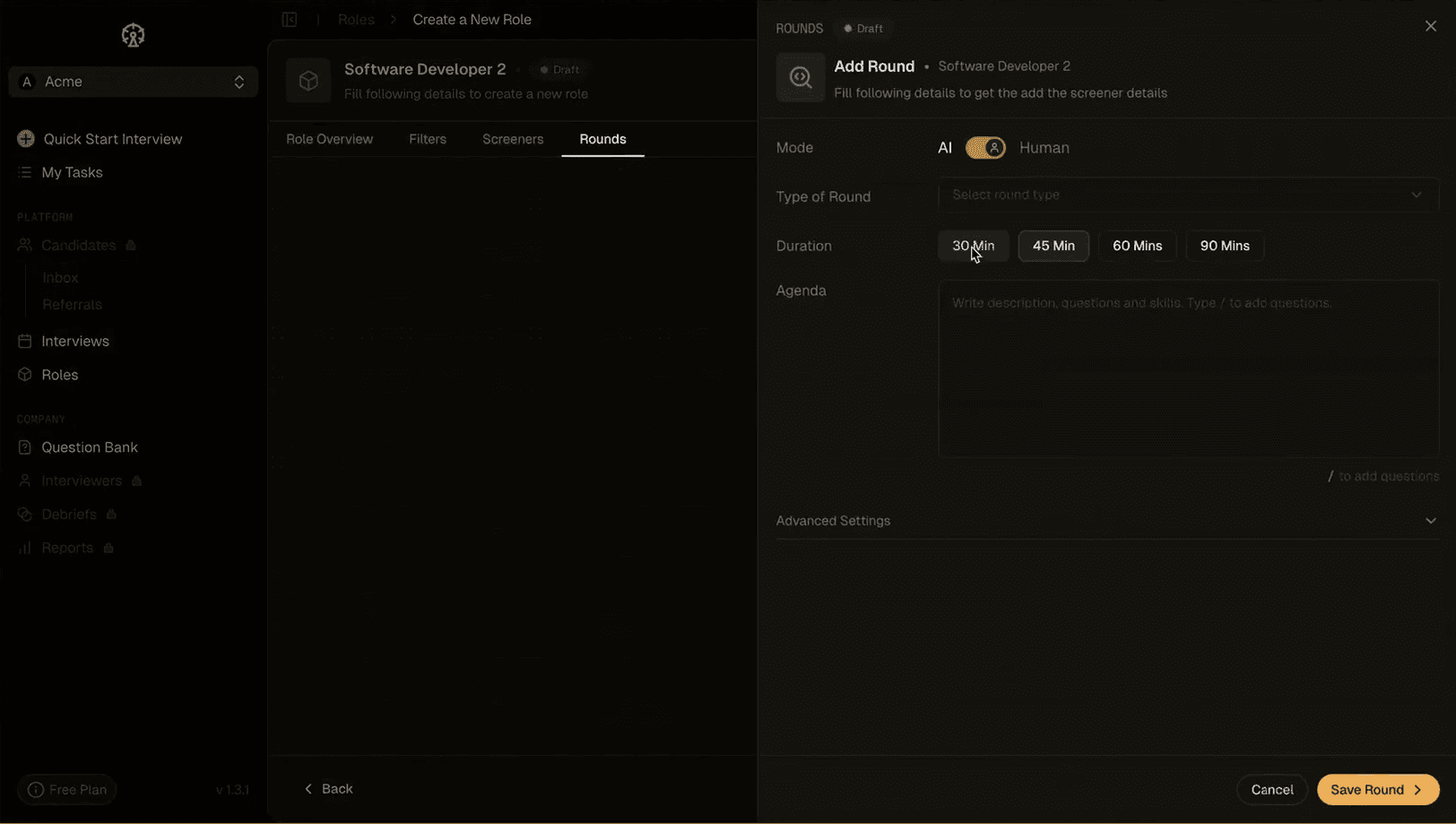
Add round modal with duration options
Round configuration
Type of Round: Select the interview focus (Technical, System Design, Behavioral, etc.)
Duration: Choose interview length:
30 Minutes
45 Minutes
60 Minutes
90 Minutes
Agenda: Define interview structure, topics to cover, and evaluation criteria. Use "/" to search and add questions from your Question Bank.
Role Created Successfully
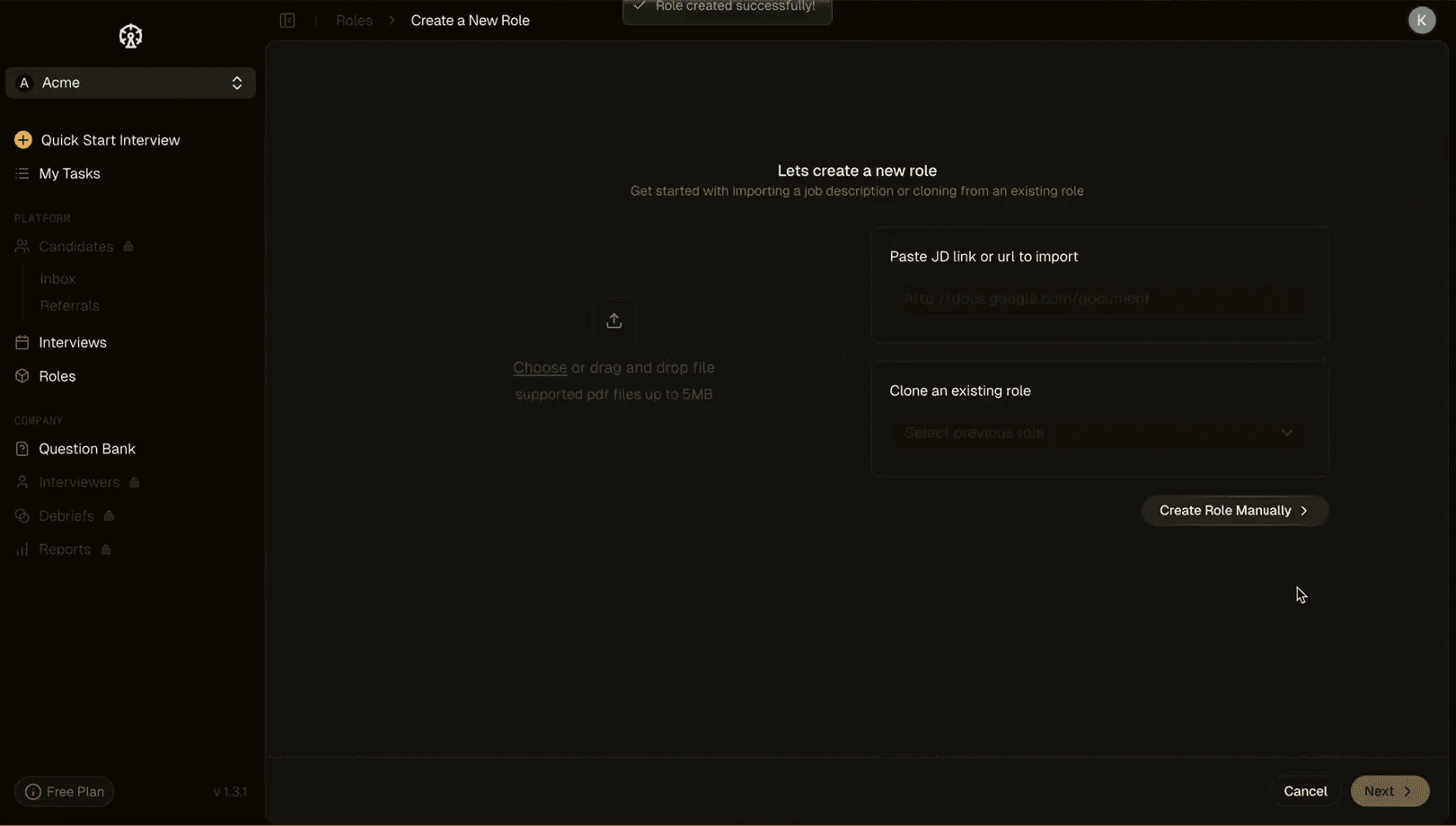
Success confirmation message
After completing all configuration steps, the system confirms successful role creation with a green notification: "Role created successfully!"
The role now appears in your All Roles dashboard with:
Draft status initially (becomes Open when published)
All configured filters, screeners, and rounds
Ready to receive and evaluate candidates
You can return to edit the role anytime by clicking it from the Roles list.
A complete demo of the role creation flow is available here

Get started with Fairground in just few mins.
Plug and Play. Works well with your existing ATS.
100 Free Credits