This guide covers the core features of Interview Canvas for conducting technical interviews, including problem selection, real-time evaluation, and monitoring capabilities.
Interview Canvas Overview
The interview canvas has three main panels: video/code editor (left), analysis and monitoring (right), and controls (bottom).
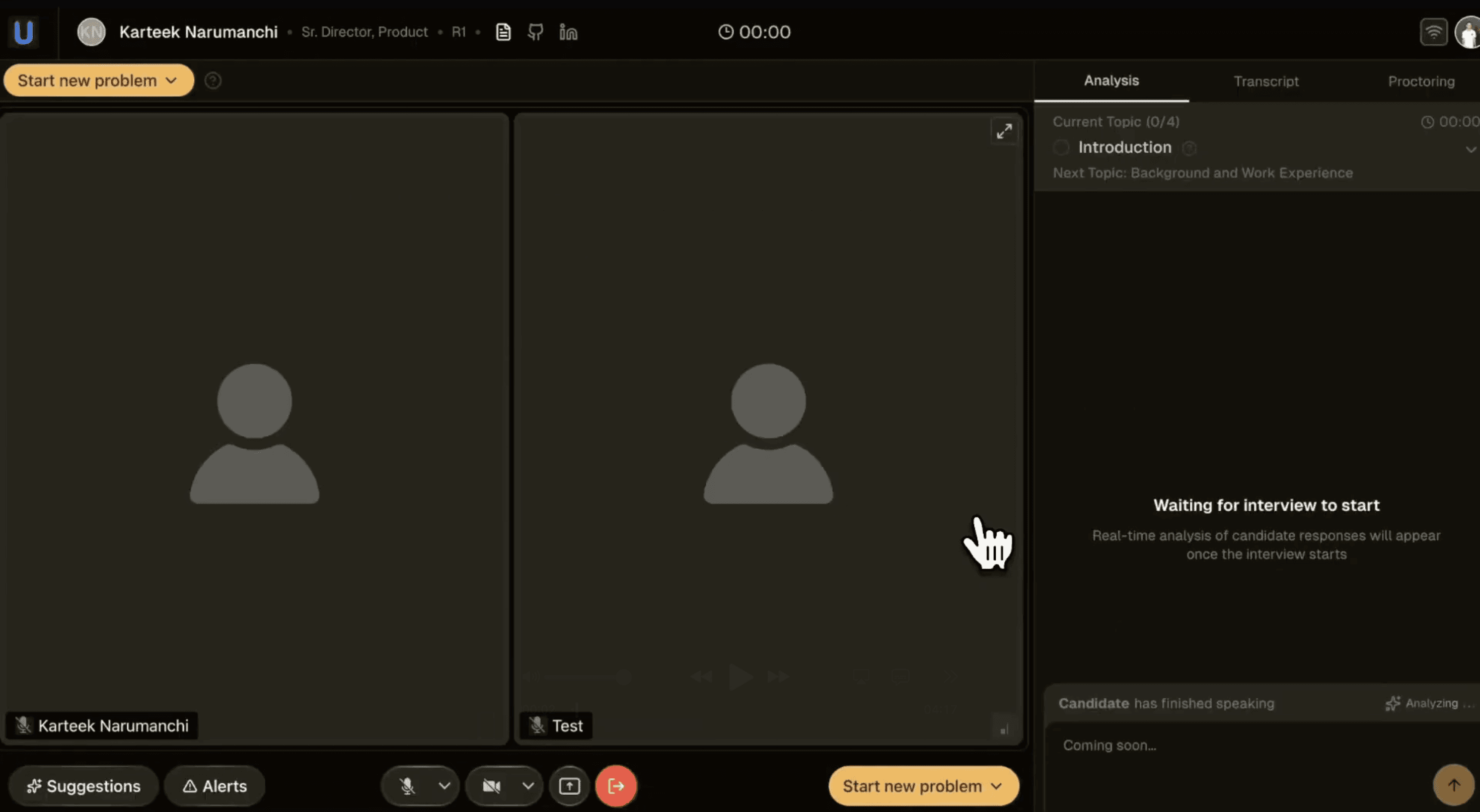
Interview Canvas (without problem editor)
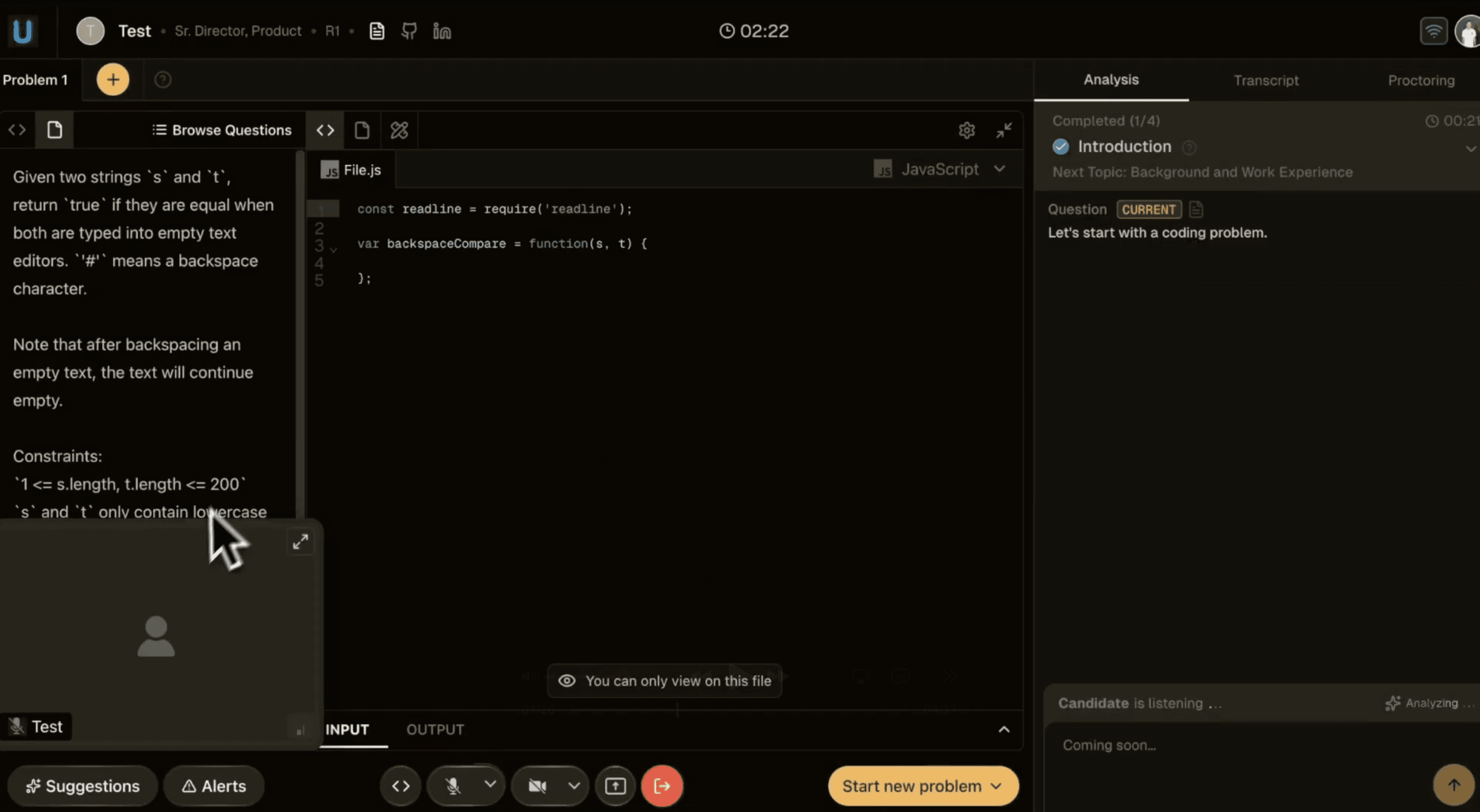
Interview Canvas (with problem editor)
Left panel
Video feeds: Shows interviewer and candidate cameras
Problem editor: Appears when a coding problem is loaded
Problem description: Displayed on the left side of the editor
Right panel
Three tabs provide different views:
Analysis: Real-time evaluation scores and insights
Transcript: Live conversation transcript
Proctoring: Monitoring alerts and candidate behavior
Bottom controls
Suggestions: AI-generated interview questions
Alerts: Proctoring or evaluation related notifications
Media controls: Microphone, camera, screen share, recording
Start new problem: Start coding or design problems
Coding Problems
Click "Start new problem" to start a coding question. You can choose from the question bank or create custom problems.
With question bank
The Question Bank contains curated coding problems organized by topic and difficulty.
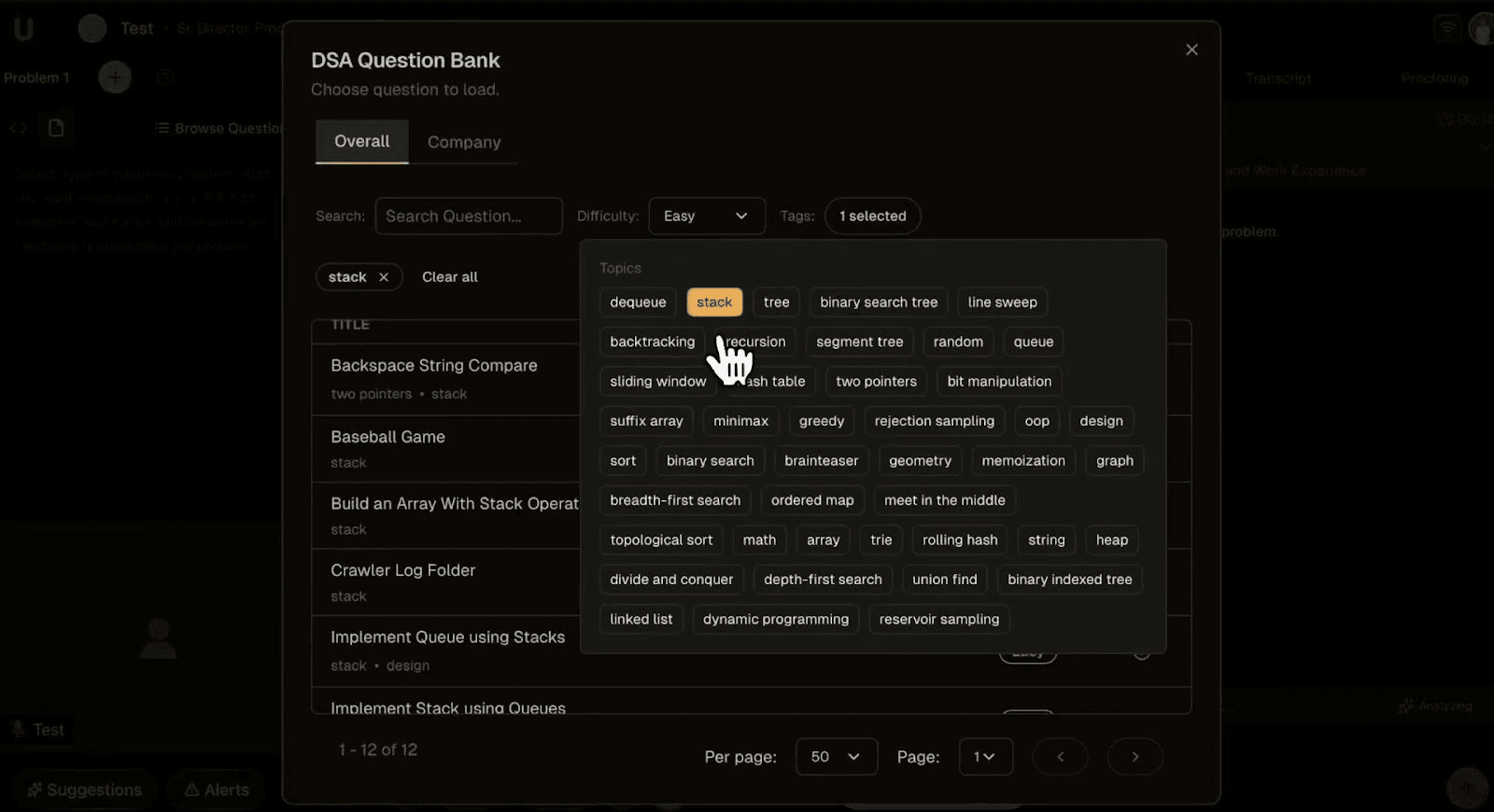
Question Bank
Filtering questions
Search: Enter keywords to find specific problems
Difficulty: Filter by Easy, Medium, or Hard
Tags: Select topics like stack, tree, dynamic programming, etc.
Question categories
Overall: General DSA problems across all topics
Company: Problems commonly asked by specific companies
Loading a problem
Click "Browse Questions" button
Apply filters or search for a specific problem
Click on a question title to select it
Problem loads in the code editor
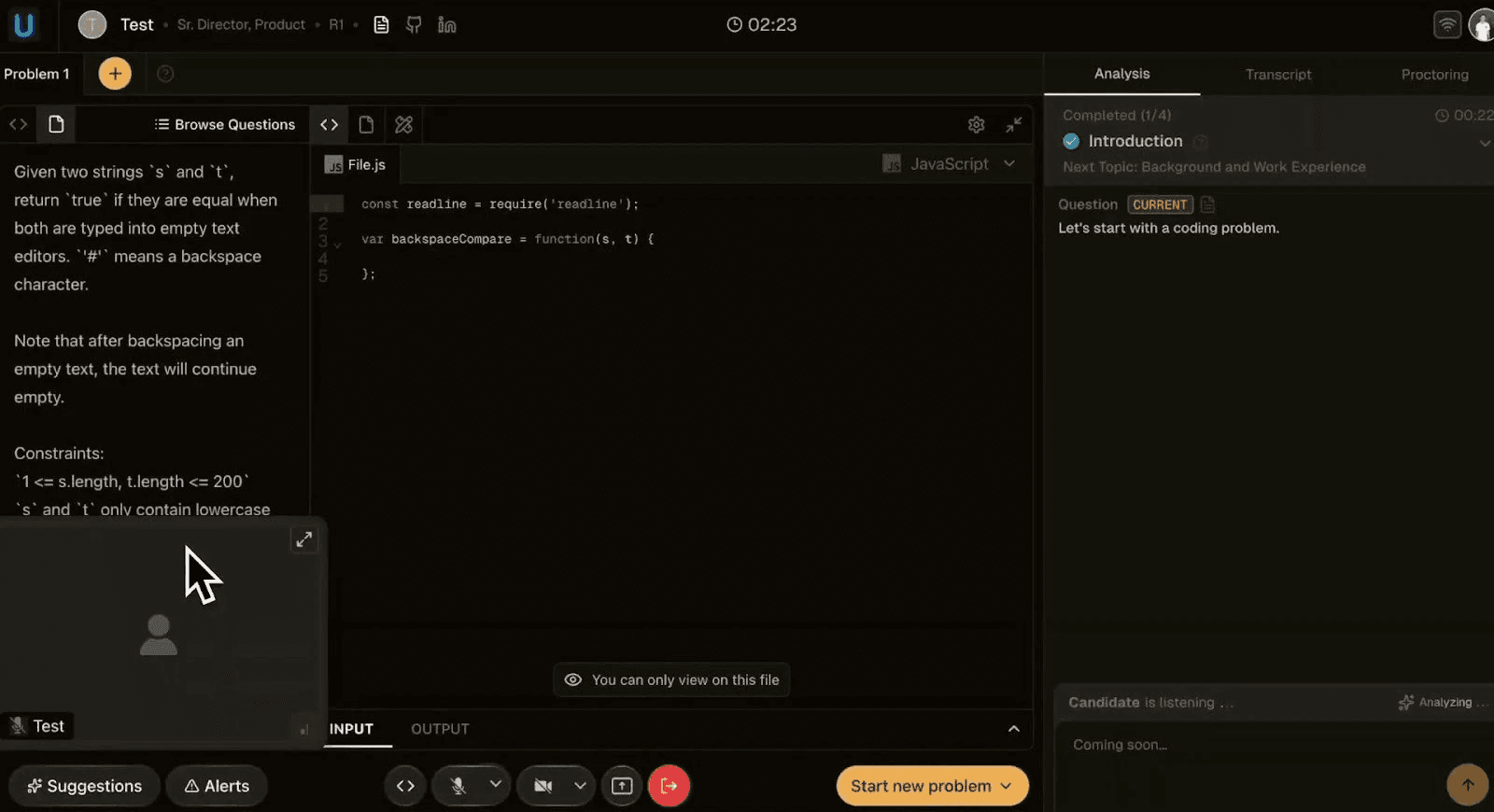
Coding problem loaded in editor
Without question bank
You can also create custom problems on the fly. Click the "+" button next to problem tabs to add a new blank problem.
Custom problem workflow
Click "+" to create a new problem tab
Type in / paste the question into the problem editor
Candidate writes code in the blank editor
Evaluation continues as normal
Note: Custom problems don't include pre-written descriptions or test cases, but Shadow Interviewer still provides real-time analysis.
Code editor features
Language selection: Dropdown to switch between Python, JavaScript, Java, etc.
Input/Output: Bottom panel for test input and execution results
Access: Candidate can edit in answer editor and interviewers in problem editor
Design Problems
Candidates can use the excalidraw and markdown editors for explaining their thought process and for drawing system design components during the interview
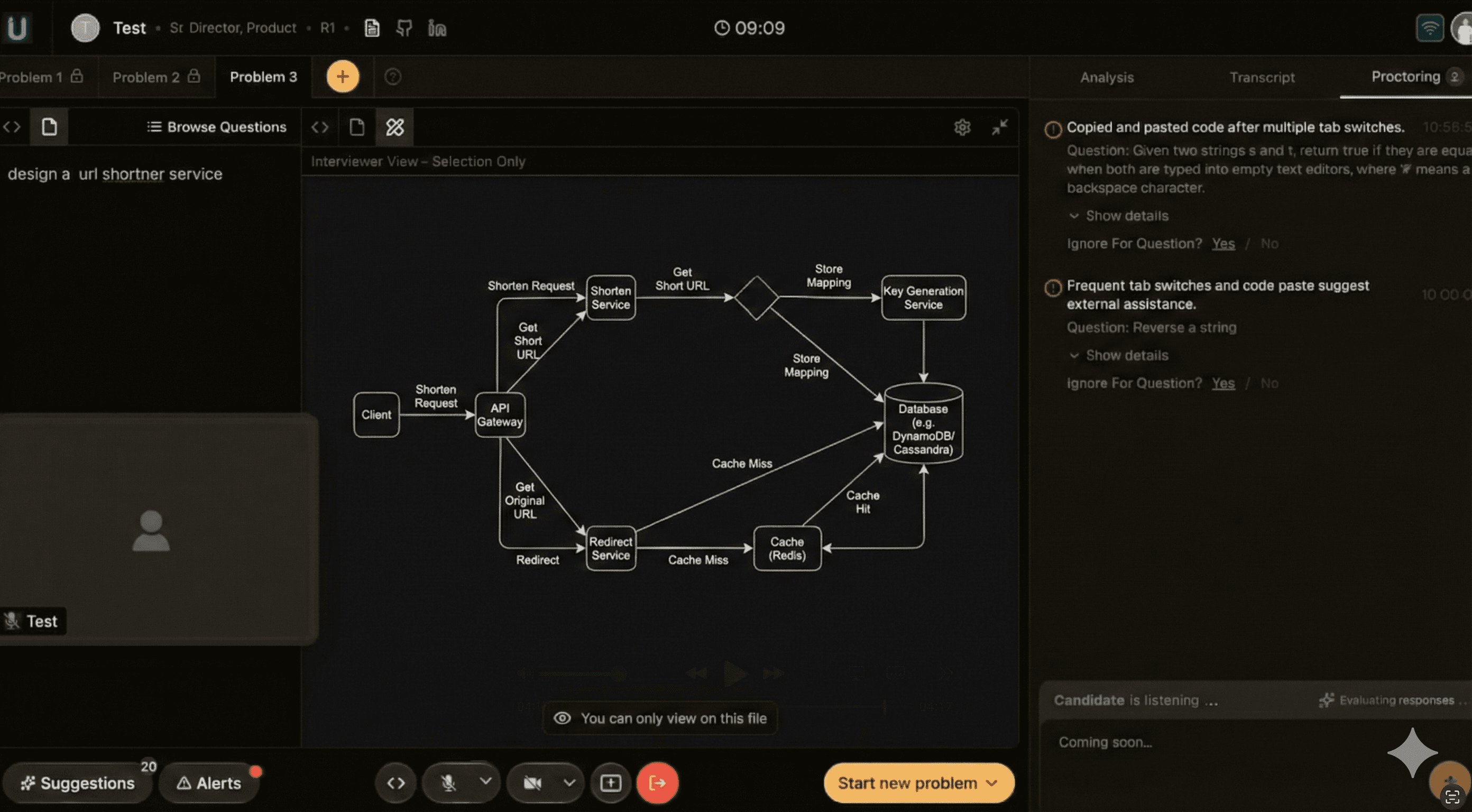
Design problem interface
Creating design problems
Click "Start new problem" and choose with diagram editor
Candidate can draw, type, or paste content
What it's for
System design discussions (architecture diagrams, component relationships)
Database schema design
API design and documentation
Flowcharts and process diagrams
Interviewer view
As the interviewer, you see 'Selection Only' mode. This means you can view what the candidate creates but cannot edit it. The candidate has full drawing and editing capabilities.
Real-Time Evaluation and Insights
Shadow Interviewer analyzes candidate performance continuously during the interview. Results appear in the Analysis tab on the right panel.
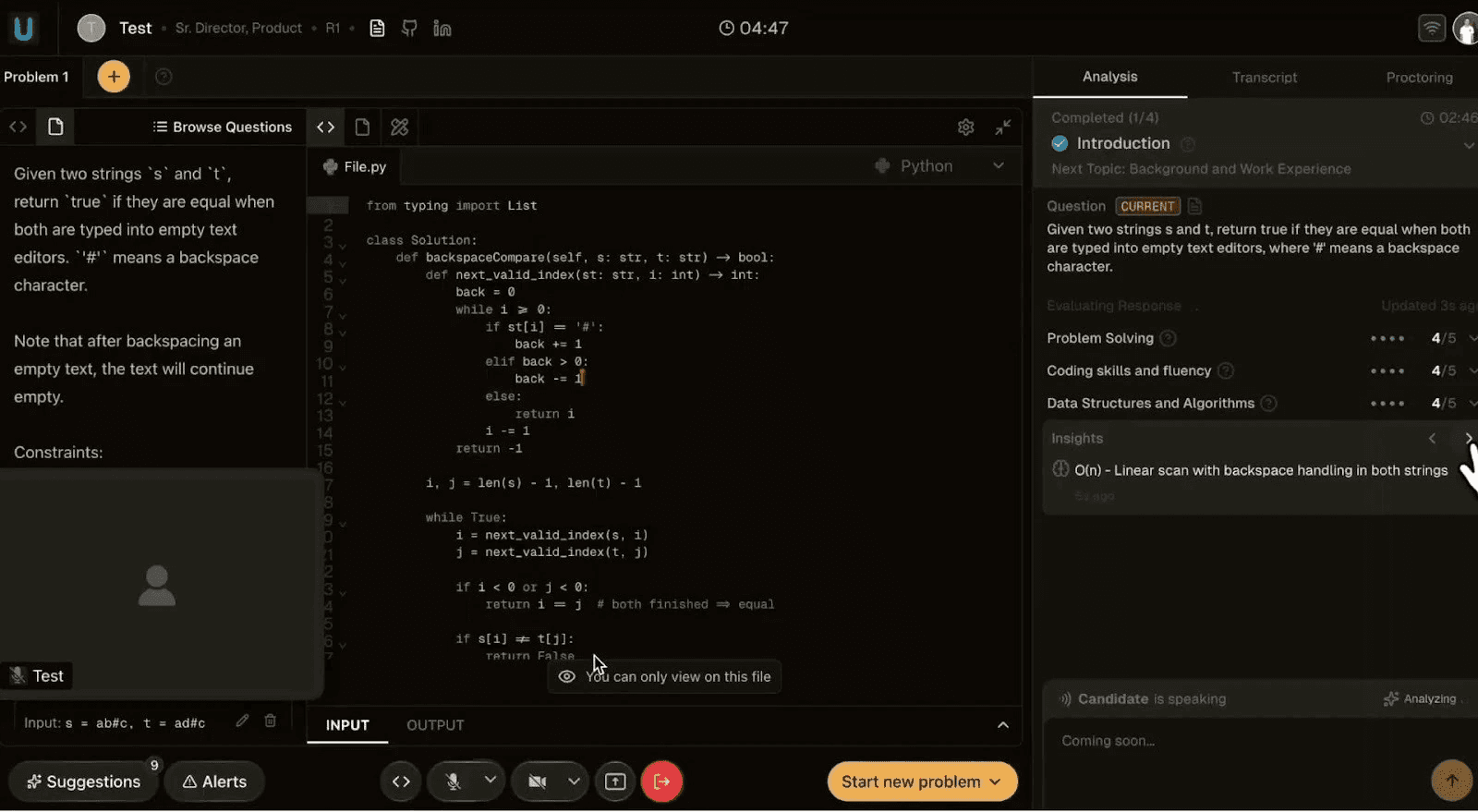
Real-time evaluation scores
Evaluation metrics
The dimensions are identified and scored on a 5-point scale basis the context of the discussion. Scores display as dots (●●●●○ = 4/5) and update dynamically as the candidate answers.
Insights
Below the scores, the Insights section provides contextual observations about the candidate's approach.
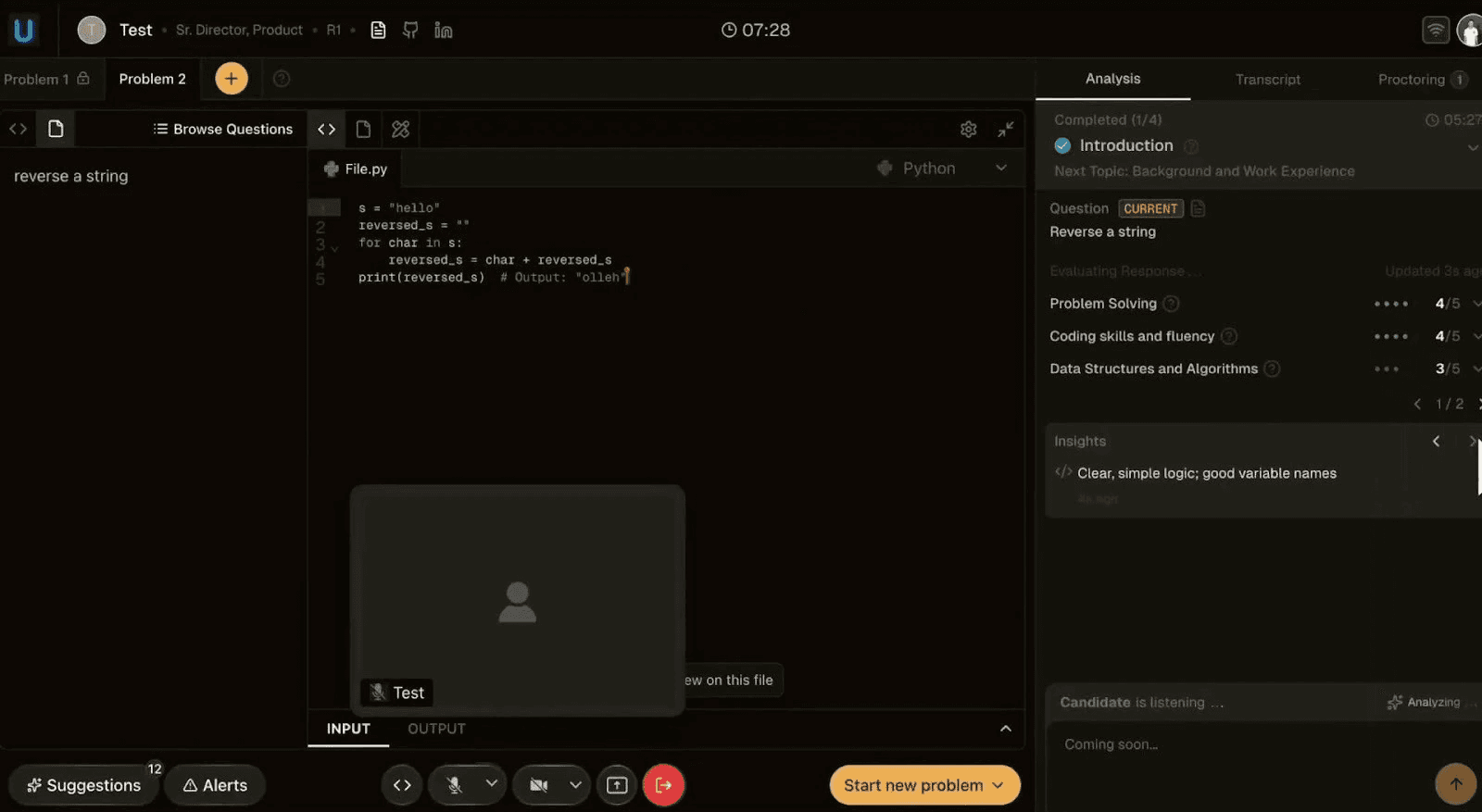
Shadow Interviewer generated insights
Example insights:
Algorithm complexity (e.g., 'O(n) - Linear scan with backspace handling')
Code quality observations ('Clear, simple logic; good variable names')
Note: Insights update as the candidate codes. Earlier observations may be replaced by newer ones as more information becomes available.
Topic progression
The top of the Analysis panel tracks interview progress:
Completed: Shows fraction of interview stages finished (e.g., 1/4)
Current topic: Highlighted with checkmark when done
Next topic: Preview of upcoming section
Suggested Questions
Click the "Suggestions" button in the bottom controls to access shadow interviewer generated interview questions. The questions are updated in real-time basis the context of the discussion
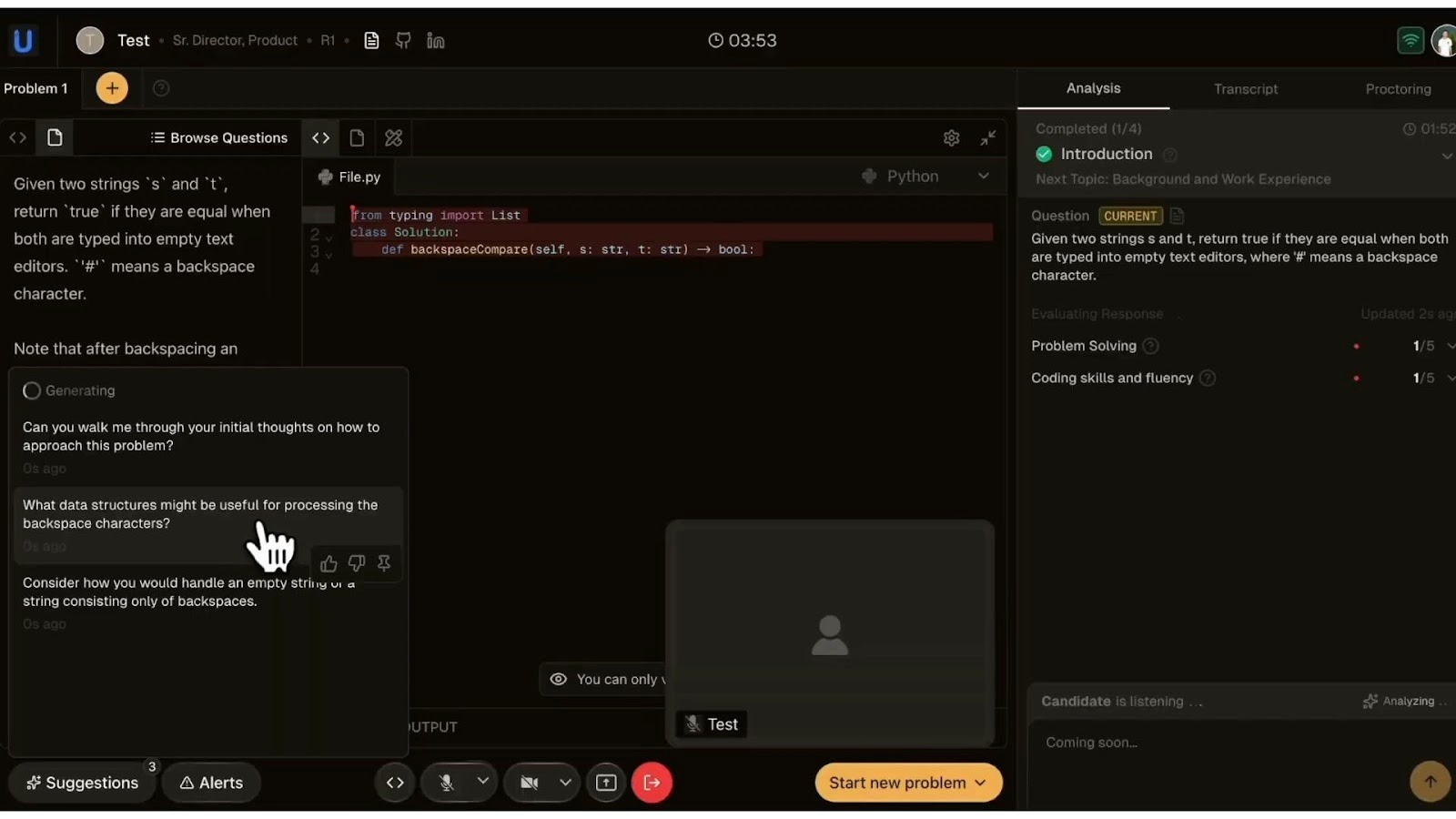
Shadow Interviwer generated suggestions
How it works
Shadow Interviewer generates contextual questions based on the current problem, candidate responses, and interview progress.
Types of suggestions
Clarifying questions: "Can you walk me through your initial thoughts on how to approach this problem?"
Deep-dive questions: "What data structures might be useful for processing the backspace characters?"
Edge case prompts: "Consider how you would handle an empty string or a string consisting only of backspaces."
Follow-up questions: Based on candidate's explanation or code
Tip: Use suggestions to maintain interview flow, especially when a candidate gets stuck or you're unsure what to ask next.
Proctoring Alerts
The platform monitors candidate behavior during interviews. Click "Alerts" in the bottom controls or check the Proctoring tab to view notifications.
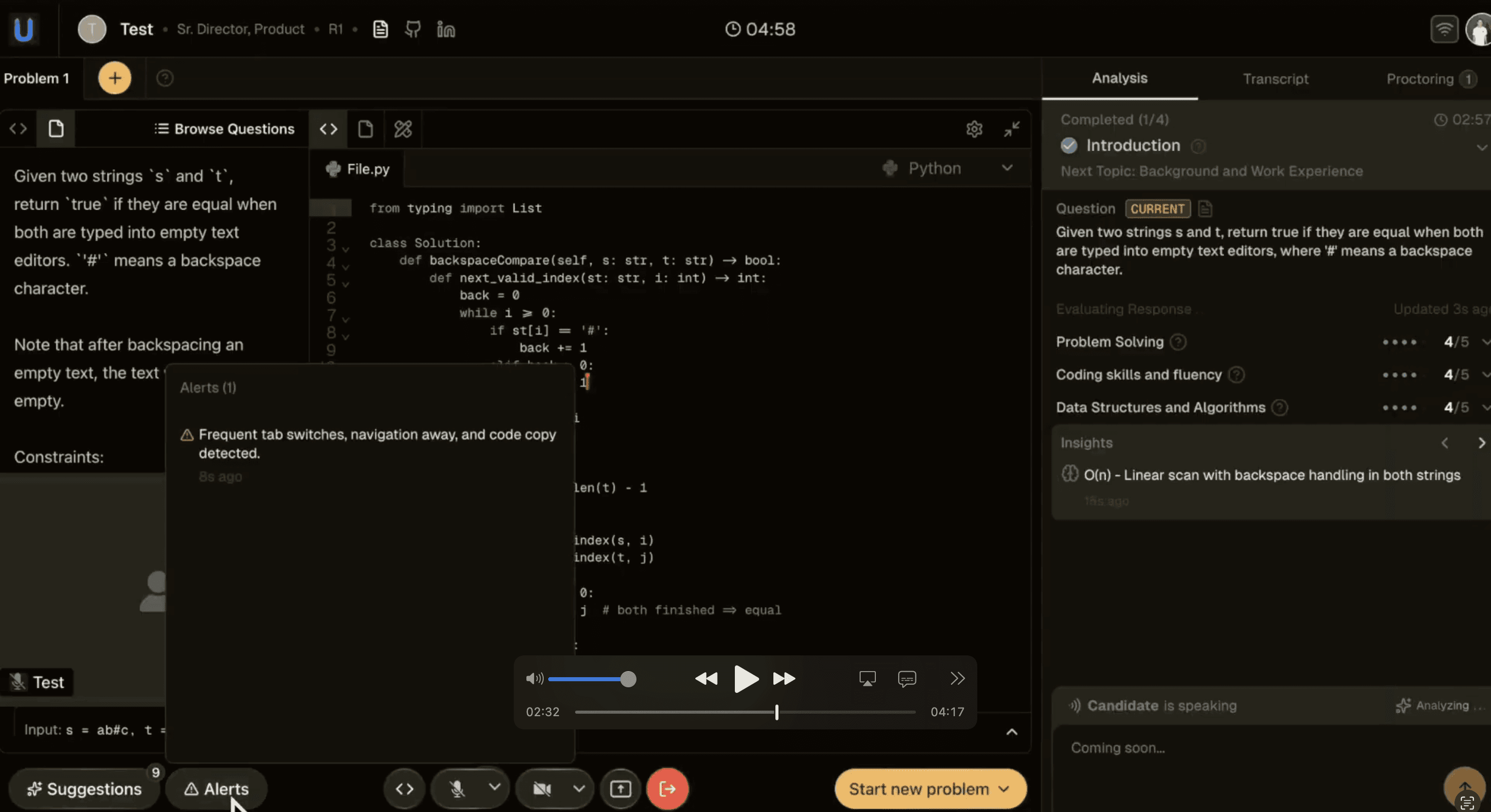
Alerts panel - proctoring alert detected
What's monitored
Tab switching: When candidate navigates away from the interview
Window focus: Loss of browser focus
Code copying: Copy-paste activity detection
LLM-generated content: Detection of AI-generated responses in code or spoken answers
Multiple screens: Dual monitor setup detection
Multiple people / no person: Candidate absence or additional people in frame
Smart screens: Detection of secondary displays that could be used inappropriately
Alert details
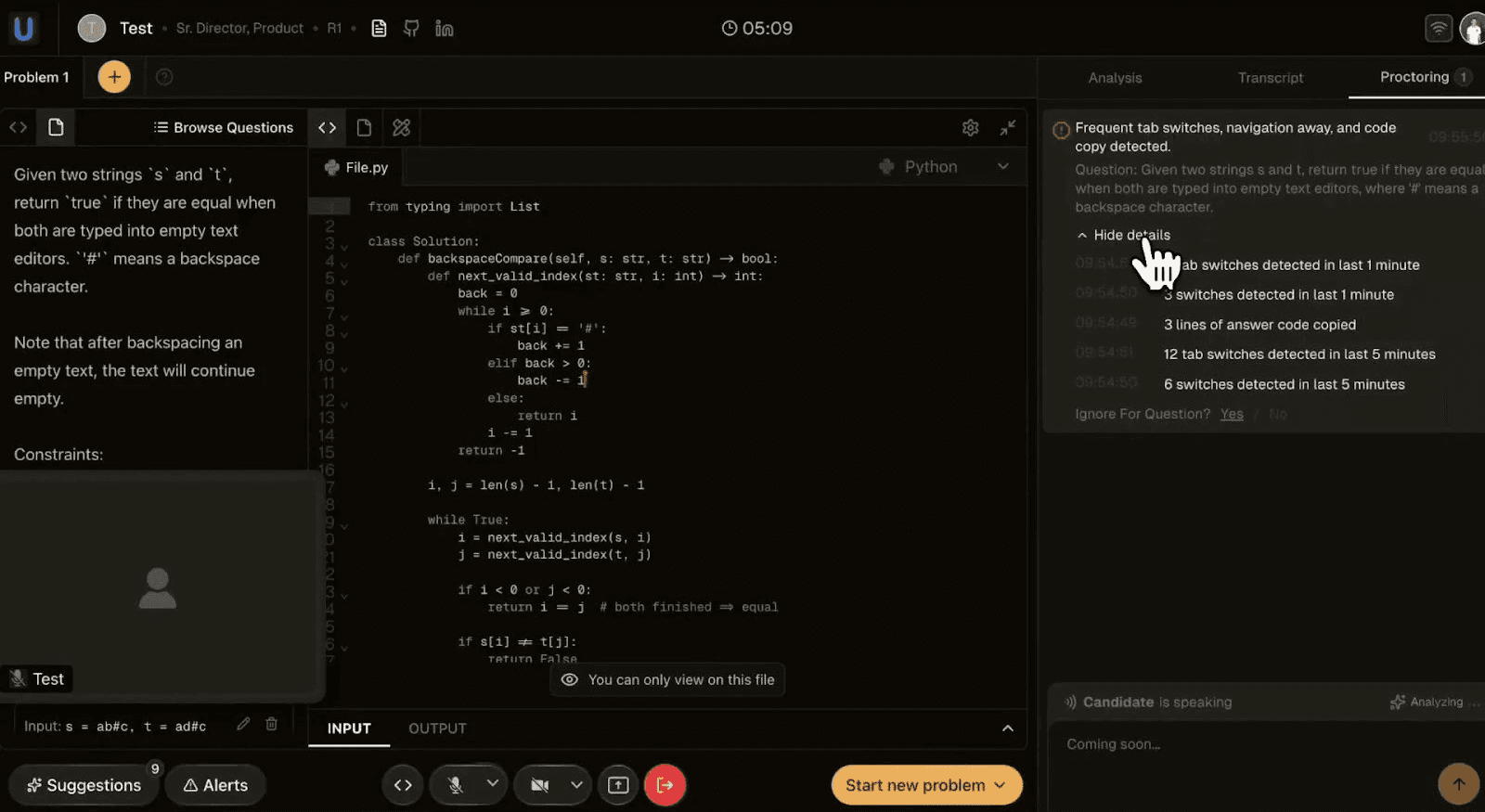
Proctoring alert with details
When an alert is triggered, you'll see:
Summary message (e.g., 'Frequent tab switches, navigation away, and code copy detected')
Breakdown of specific behaviors
Time windows (e.g., '6 tab switches detected in last 1 minute')
Timestamp relative to current time (e.g., '2m ago')
Option to hide details or ignore for the question
Responding to alerts
Alerts are informational. How you respond depends on context:
Single tab switch might be accidental - usually harmless
Multiple switches in short time may warrant a gentle reminder
Code copying could be legitimate (referencing boilerplate) or concerning
Use your judgment - alerts are guidance, not definitive proof
Alert indicator
A red dot appears on the "Alerts" button when new alerts are triggered. The number shows total active alerts.
You can watch this demo video to see all of these features in action

Get started with Fairground in just few mins.
Plug and Play. Works well with your existing ATS.
100 Free Credits