This guide covers the post-interview summary generated by Shadow Interviewer, including how to review evaluation data, edit content, and submit final verdicts.
Summary Generation
After an interview ends, Shadow Interviewer automatically generates a comprehensive summary. This process takes a few minutes depending on interview length.
When summaries are created automatically after the interview is ended they appear in DRAFT status initially and can be reviewed and modified before submission
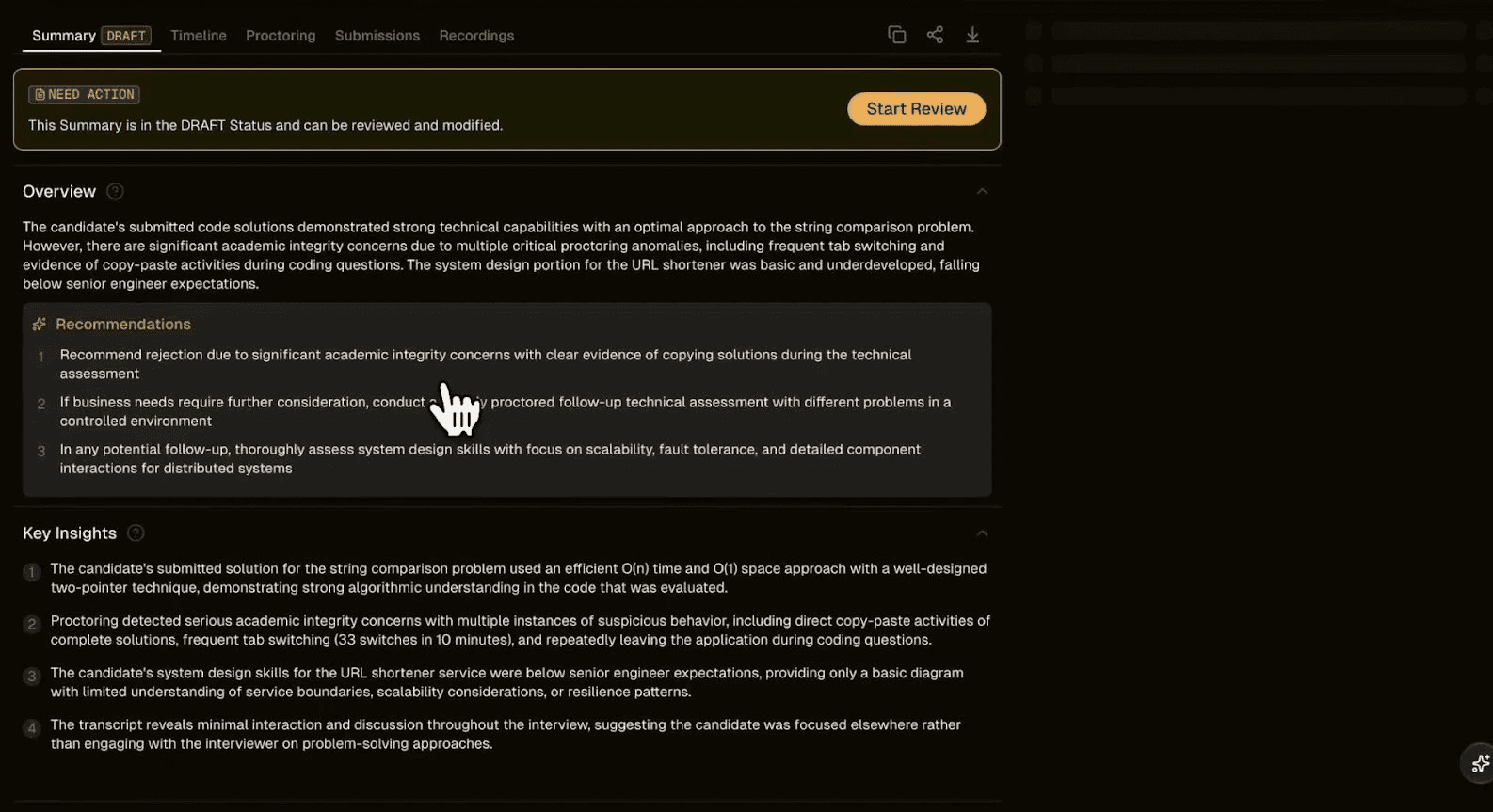
Summary in DRAFT status
The banner says "This Summary is in the DRAFT Status and can be reviewed and modified." Click "Start Review" to begin evaluation.
Components of Summary
The summary includes several sections that provide different perspectives on candidate performance.
Overview
High-level assessment summarizing the interview:
Performance summary: 2-3 paragraph narrative covering strengths and concerns
Recommendations: Recommendations for next steps (reject / proceed, further assessment)
Key Insights
Numbered bullet points highlighting the most important observations which cover over-arching insights across topics covered during the interview
Proctoring
Summary of integrity monitoring during the interview:
Critical anomalies: Highlighted at the top if detected
Detected events: Chronological list of specific incidents
Context: Shows which question was active when events occurred
Scorecard
Visual representation of competency scores:
Spider/radar chart comparing candidate score to baseline
Multiple dimensions plotted (System Design, Problem Solving, DSA, etc.)
Company scorecard available if configured
Strengths & Weaknesses
Structured summary of candidate performance:
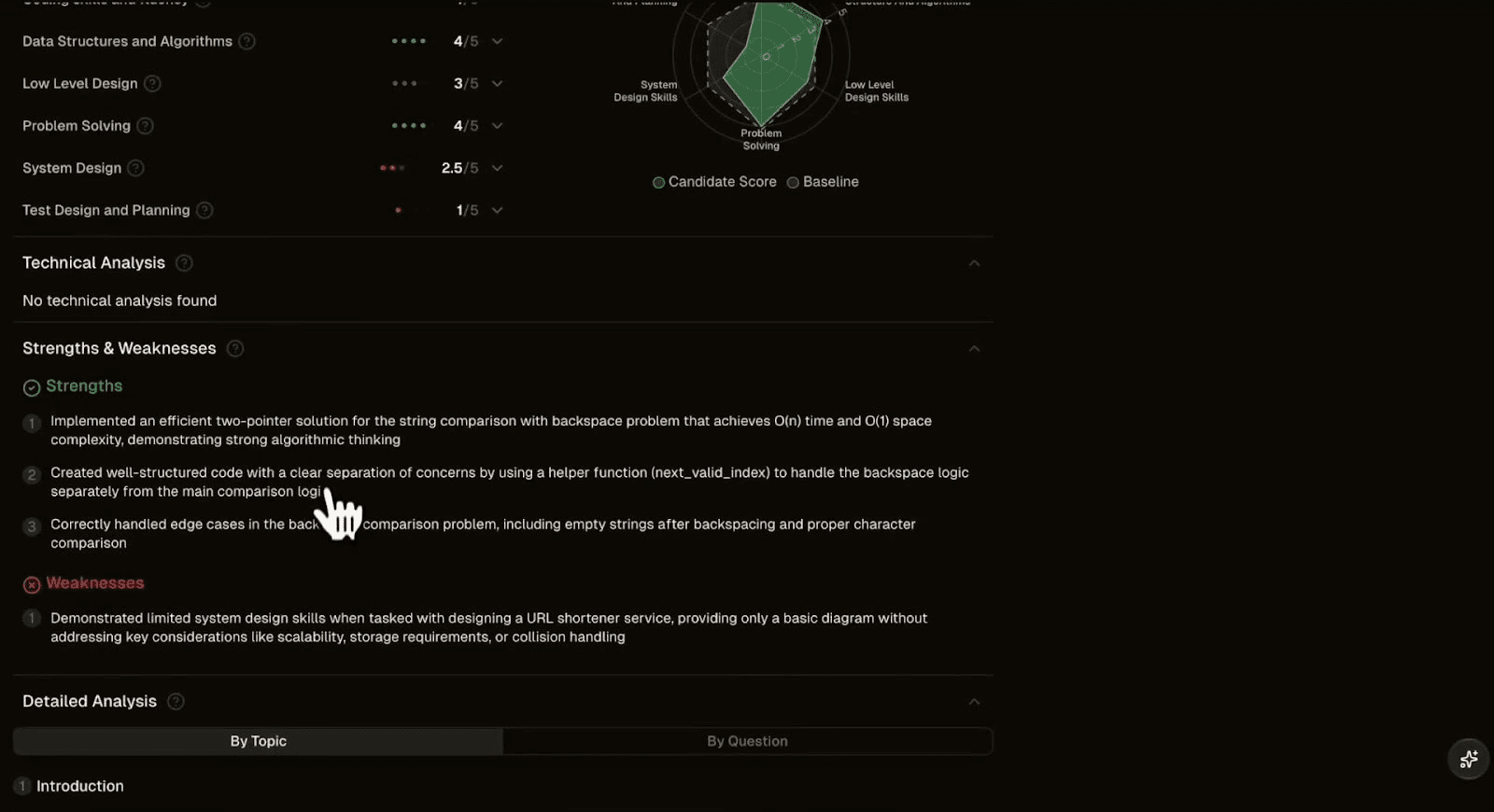
Strengths and Weaknesses section
Strengths: Numbered list of positive observations
Weaknesses: Numbered list of areas for improvement or concerns
Detailed Analysis
Two views organize detailed evaluation data:
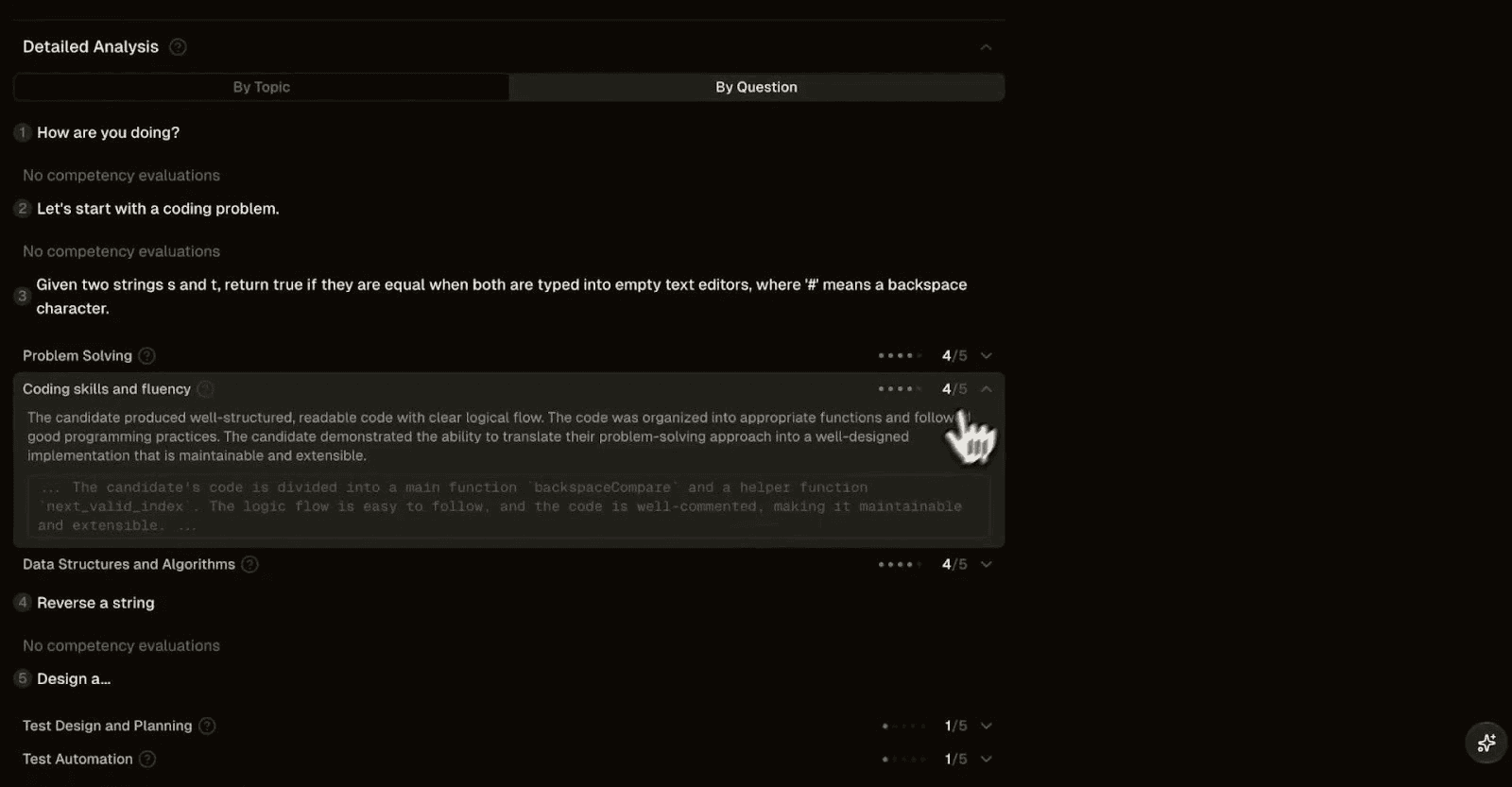
Detailed Analysis - By Topic and By Question views
By Topic:
Groups questions by interview stage or topic area
Shows scores for each competency (Problem Solving, Coding Skills, DSA, etc.)
Displays detailed feedback for each dimension
By Question:
Lists each question asked during the interview
Shows individual scores and evaluations per question
Useful for understanding performance across different problem types
Timeline
The Timeline tab provides a chronological view of the interview with key events and topic progression.
What it shows
Time-stamped list of questions asked
Topic transitions during the interview
Duration spent on each section
Use case: Useful for reconstructing the interview flow or identifying when specific issues occurred.
Submissions
The Submissions tab shows all code and design artifacts submitted by the candidate during the interview.
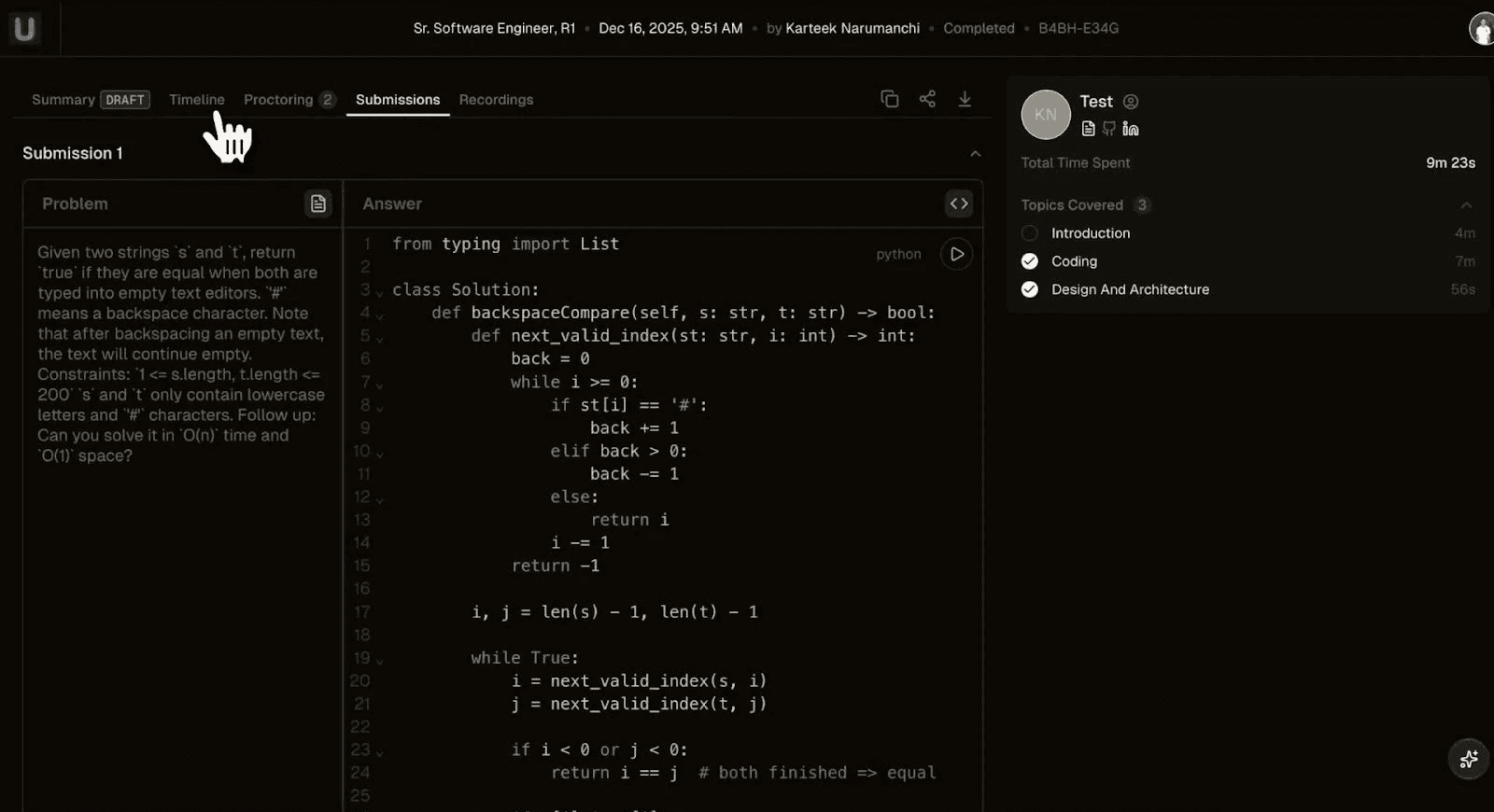
Submissions tab with code review
What's included
Problem descriptions: Full text of each question
Submitted code: Final code written by candidate
Language indicator: Shows programming language used
Playback option: Video replay showing candidate typing the solution
Code playback
Each submission has a replay feature:
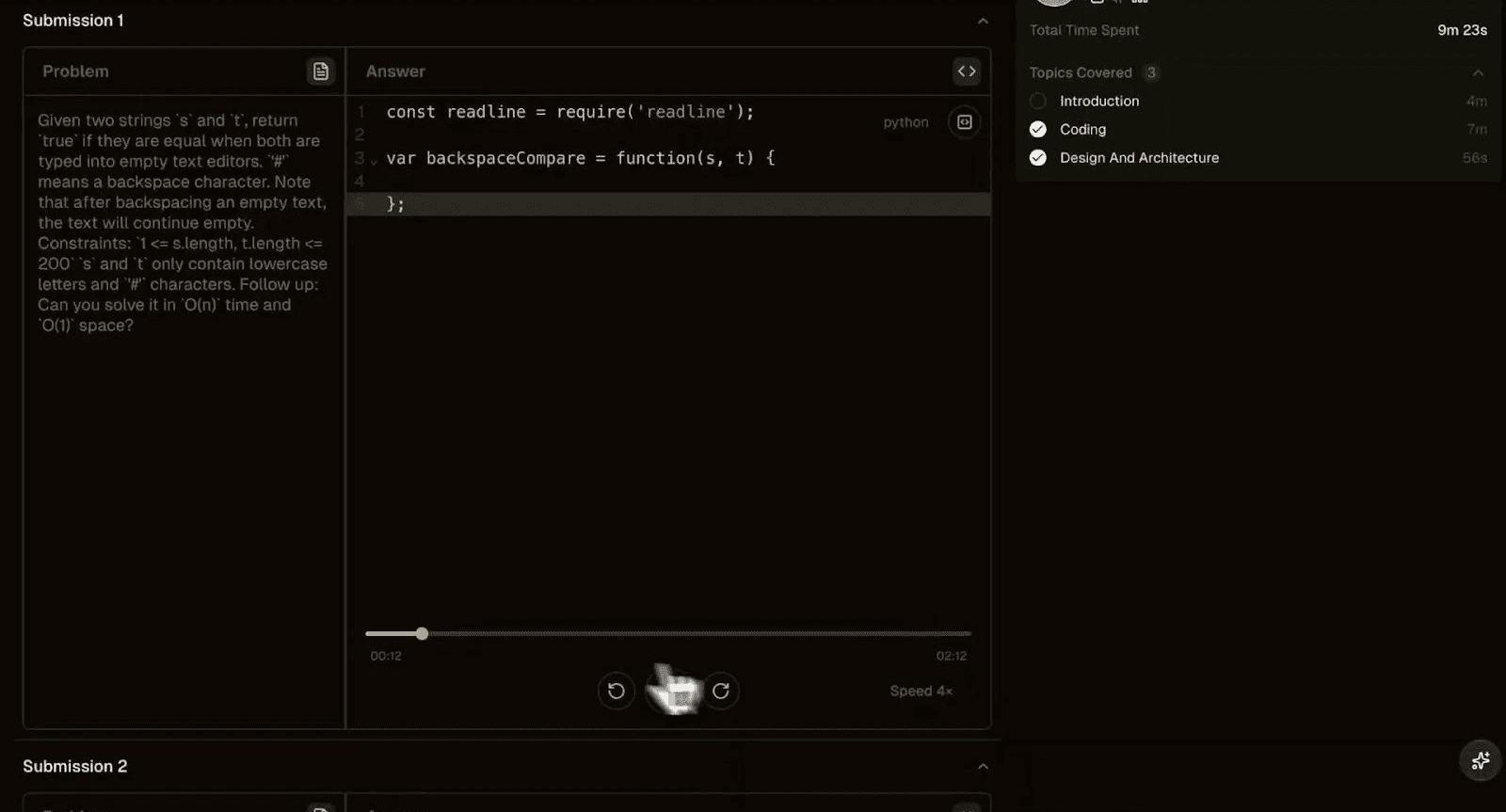
Code playback with timeline
Scrubber bar to navigate through coding session
Play/pause and speed controls (4x available)
Shows code evolution over time
Timestamp display (current time / total duration)
Tip: Use playback to verify candidates wrote code themselves or to understand their problem-solving process.
Transcript
The transcript provides an audio and text record of the conversation during the interview.
Use case: Reference specific discussion points, verify candidate explanations, or share conversation details with hiring teams.
Editing Summary
While the summary is in DRAFT status, you can edit most content before finalizing.
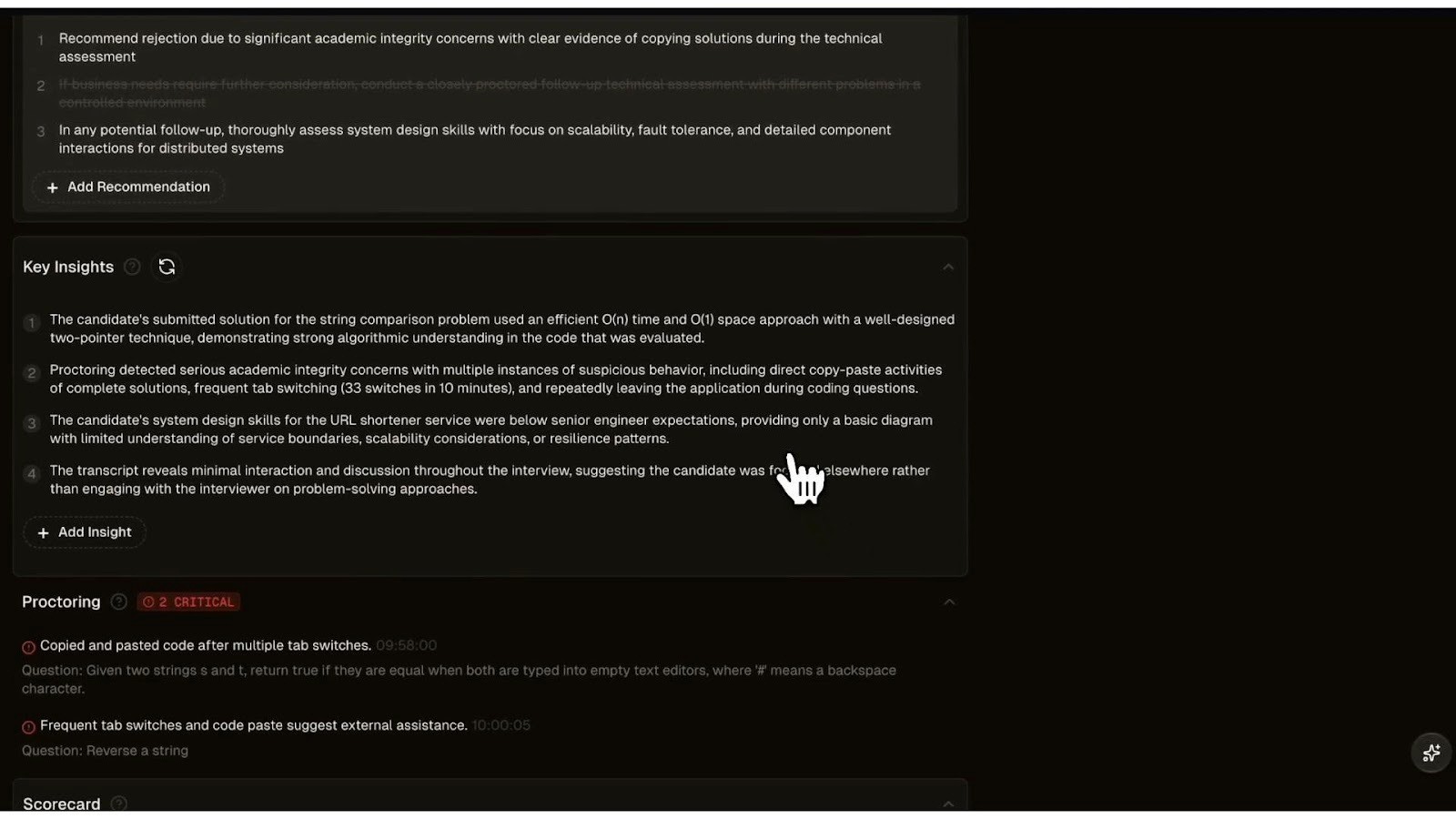
Editing options in summary
What can be edited
Recommendations: Add, remove, or modify recommendations
Key Insights: Add additional insights or remove existing ones
Overview text: Modify the summary narrative
Proctoring notes: Ignore specific alerts or add context
How to edit
Click on editable text (it will highlight or show an edit icon)
Make your changes inline
Use "+ Add Recommendation" or "+ Add Insight" buttons to add new items
Use strikethrough to remove recommendations you disagree with
Regenerate options
Some sections have refresh/regenerate buttons:
Click the circular arrow icon next to section headers
Shadow Interviewer will generate new content based on interview data
Useful if initial AI suggestions miss important points
Note: Edits are auto-saved. You don't need to manually save changes.
Final Verdict
After reviewing and editing the summary, submit your final verdict to complete the evaluation.
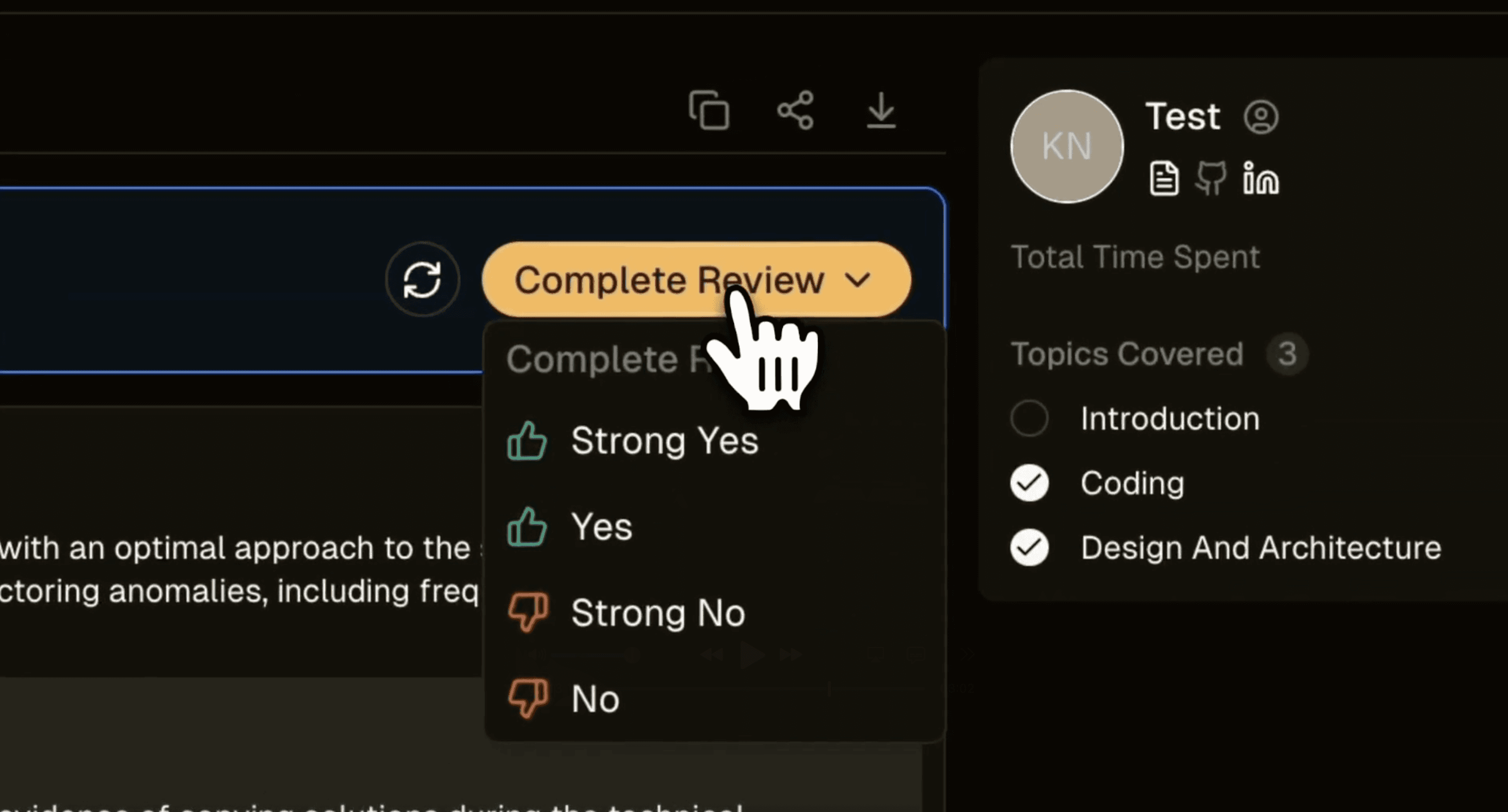
Complete Review button
Submitting verdict
Review all sections of the summary
Make any necessary edits
Click "Complete Review" button (appears at top of page)
Select your final verdict from the options
Verdict options
Strong yes: Clear hire recommendation
Yes: Hire with some reservations
No: Do not hire
Strong no: Clear rejection recommendation
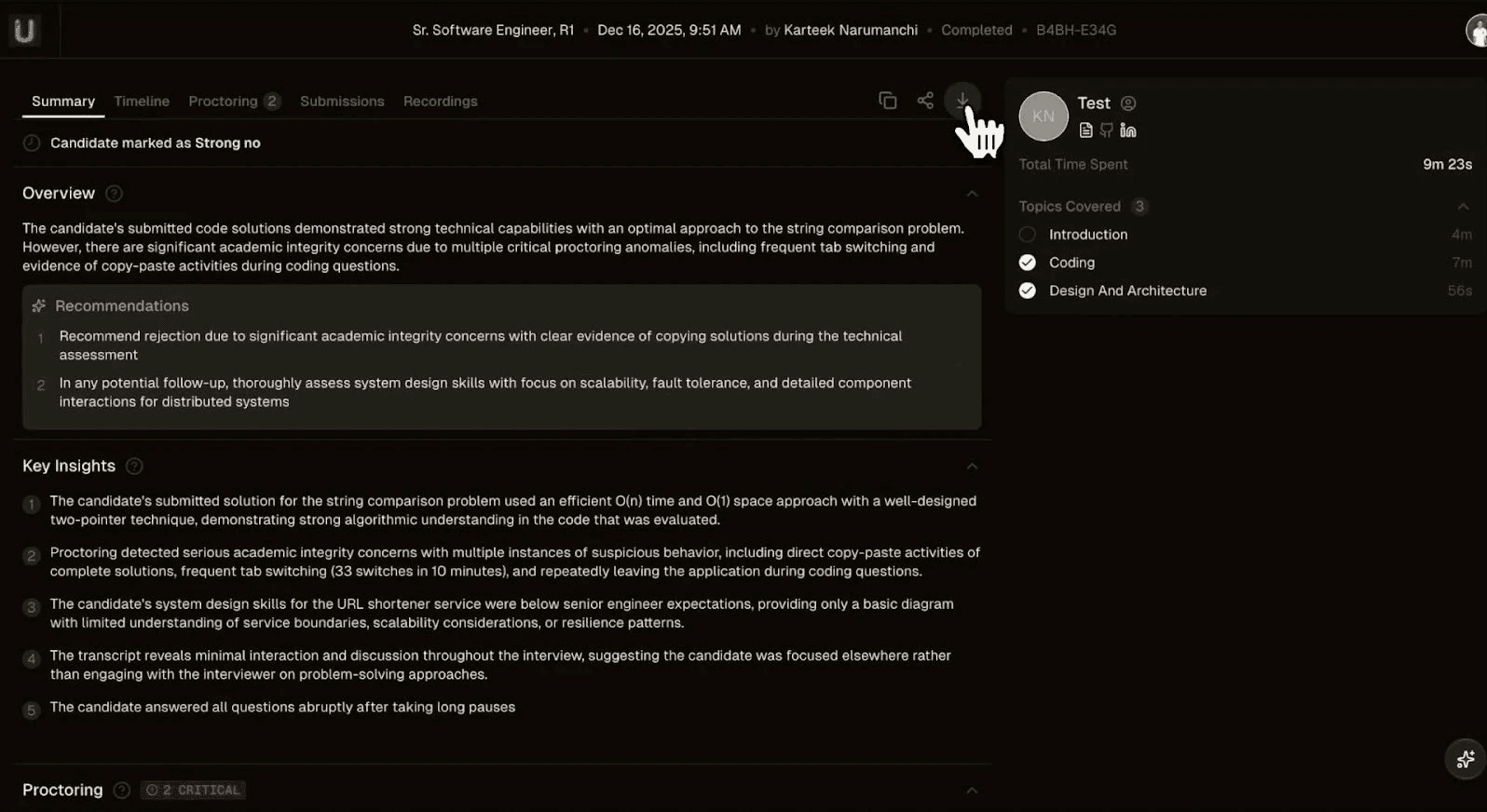
Summary after verdict submission
After submission
Status changes from "DRAFT" to final state
Verdict appears at top of summary page
Summary becomes read-only (no further edits)
Can be shared with hiring team or exported
You can check a demo of all of these features in this video

Get started with Fairground in just few mins.
Plug and Play. Works well with your existing ATS.
100 Free Credits