This guide walks through the interview setup process, from initial access to accepting candidate invites.
First Time Setup
When you first access the platform, you'll land in candidate view. You need to switch to interviewer mode.
Access interviewer sign-in
Important: By default, the platform shows candidate view. You need to switch to interviewer mode first.
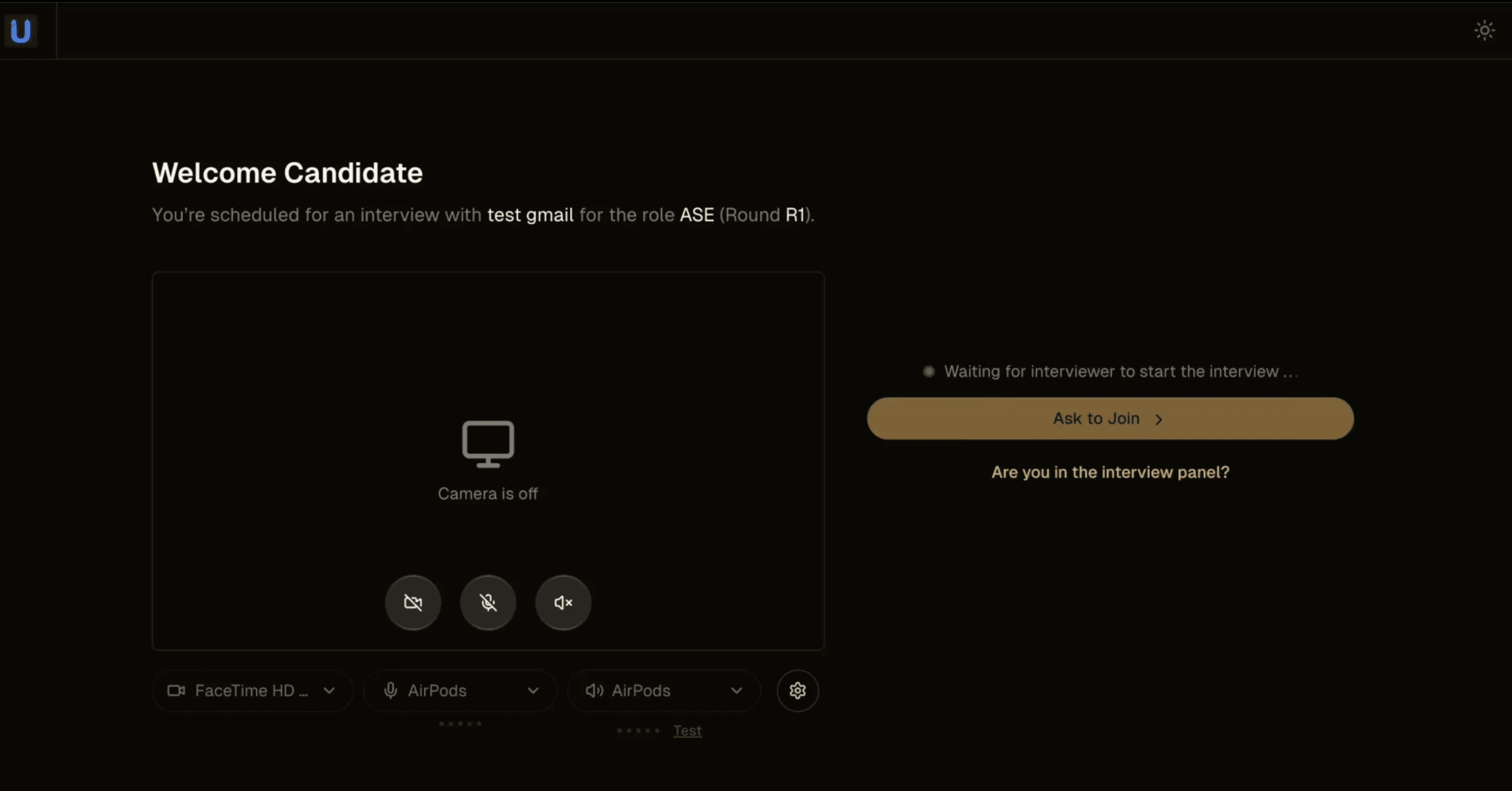
Default first time landing view
When you first visit, you'll see a waiting screen with:
Message: "Waiting for interviewer to start the interview..."
"Ask to Join" button (for candidates)
"Are you in the interview panel?" link at the bottom
Click "Are you in the interview panel?" to access the interviewer sign-in page.
Sign in with Google
After clicking the panel link, you'll see the sign-in screen.
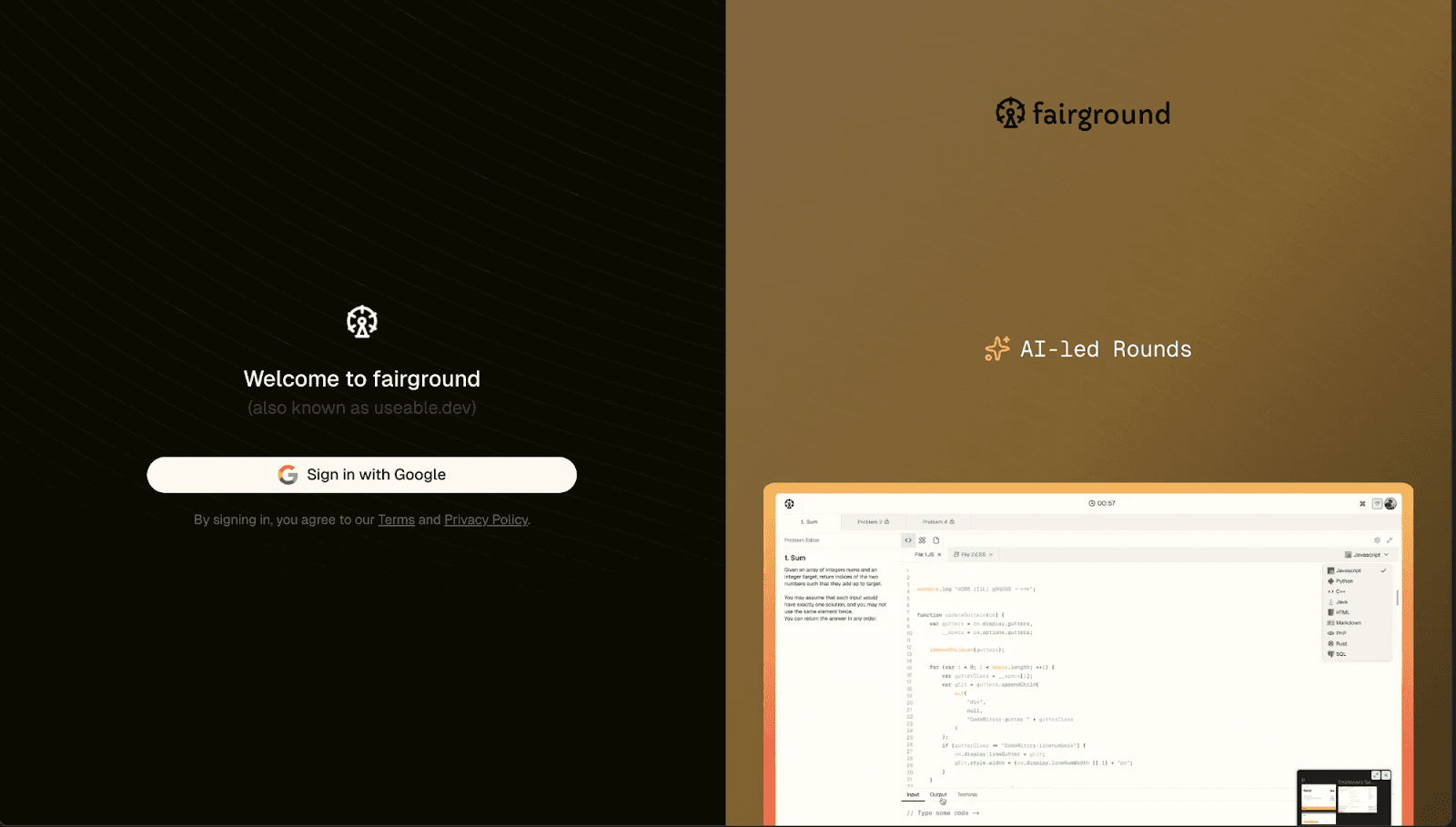
Interviewer sign-in screen
Click "Sign in with Google"
Select your company email account
Complete the authentication flow
Note: Always use your company Google account. Personal accounts will not have access.
After signing in, you'll automatically be taken to the interviewer lobby.
Lobby
The lobby is where you set up your audio and video before entering the interview room.
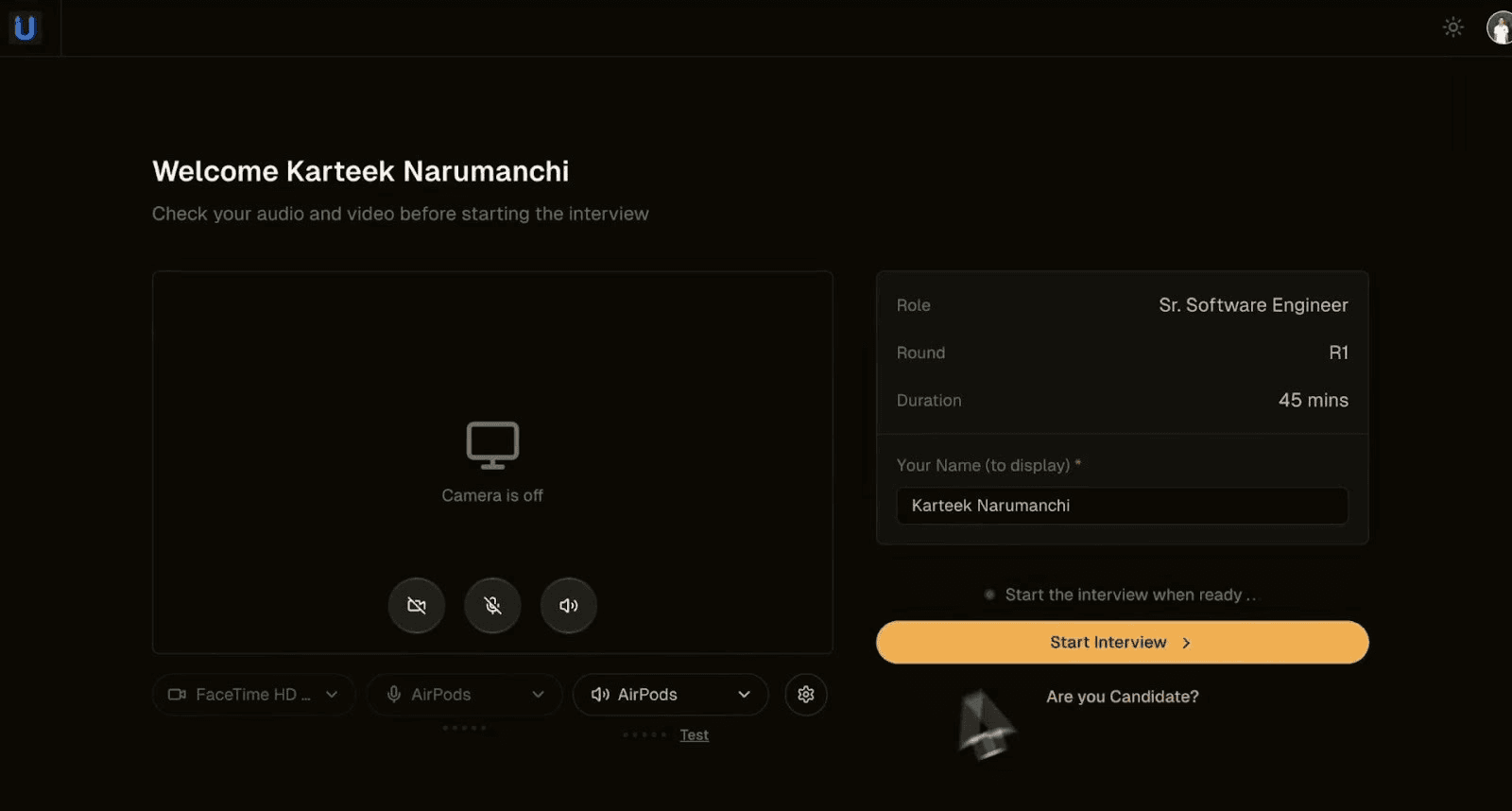
Interviewer lobby screen
Setting up media
Before starting, verify your audio and video setup:
Camera: Toggle camera on/off. Select your camera device from the dropdown.
Microphone: Toggle microphone on/off. Choose your mic from the dropdown.
Speaker: Select audio output device. Test audio before starting.
Settings: Access additional audio/video settings via the gear icon.
Interview details
The right panel shows interview information:
Role and round (e.g., Sr. Software Engineer - R1)
Interview duration (e.g., 45 mins)
Your display name (editable)
Starting the interview
Click "Start Interview" when ready. This takes you to the interview agenda screen.
Interview Agenda (optional)
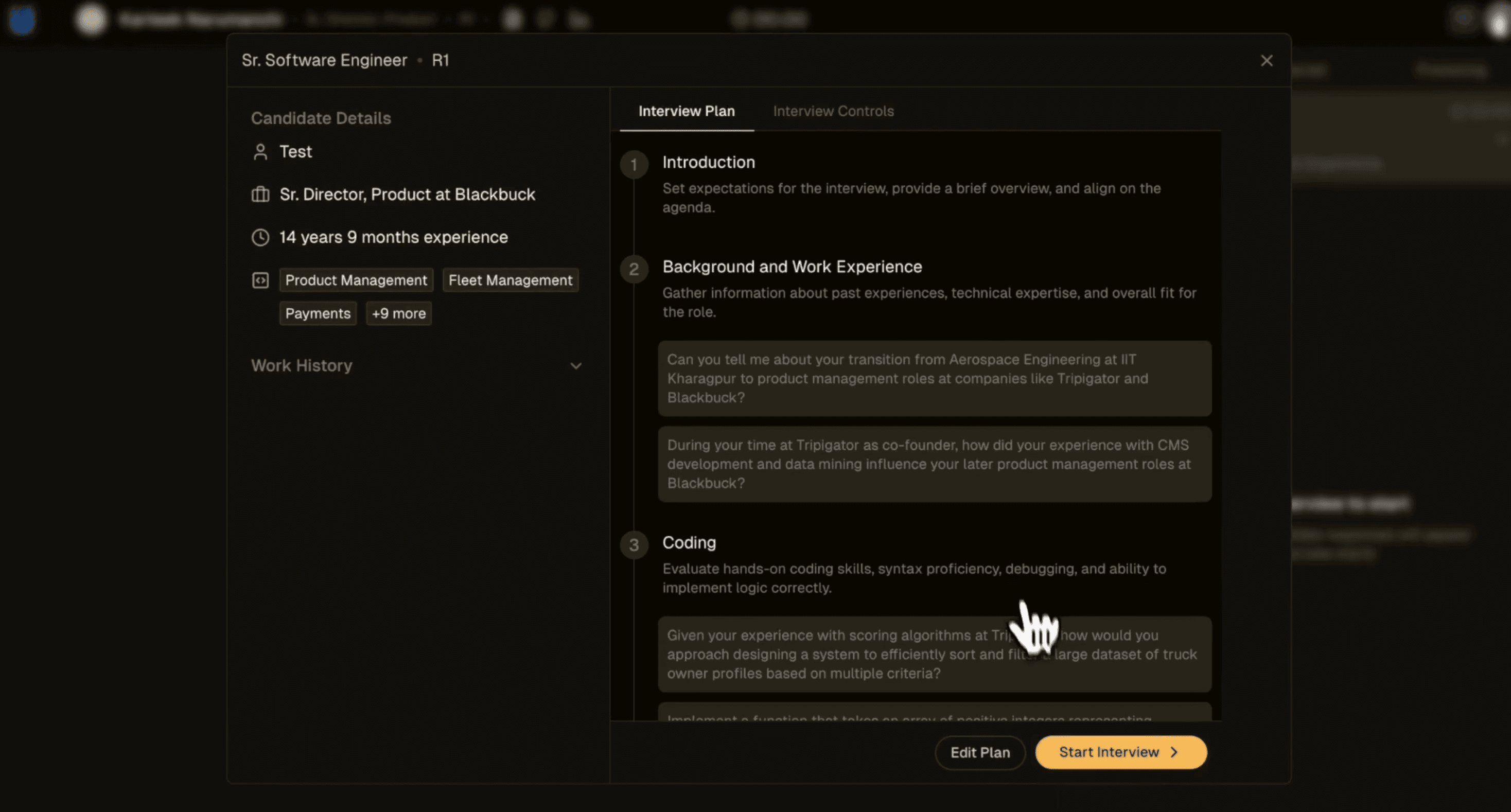
The interview agenda helps you plan and structure the interview. You can review the default plan, generate a custom plan, or skip directly to the interview.
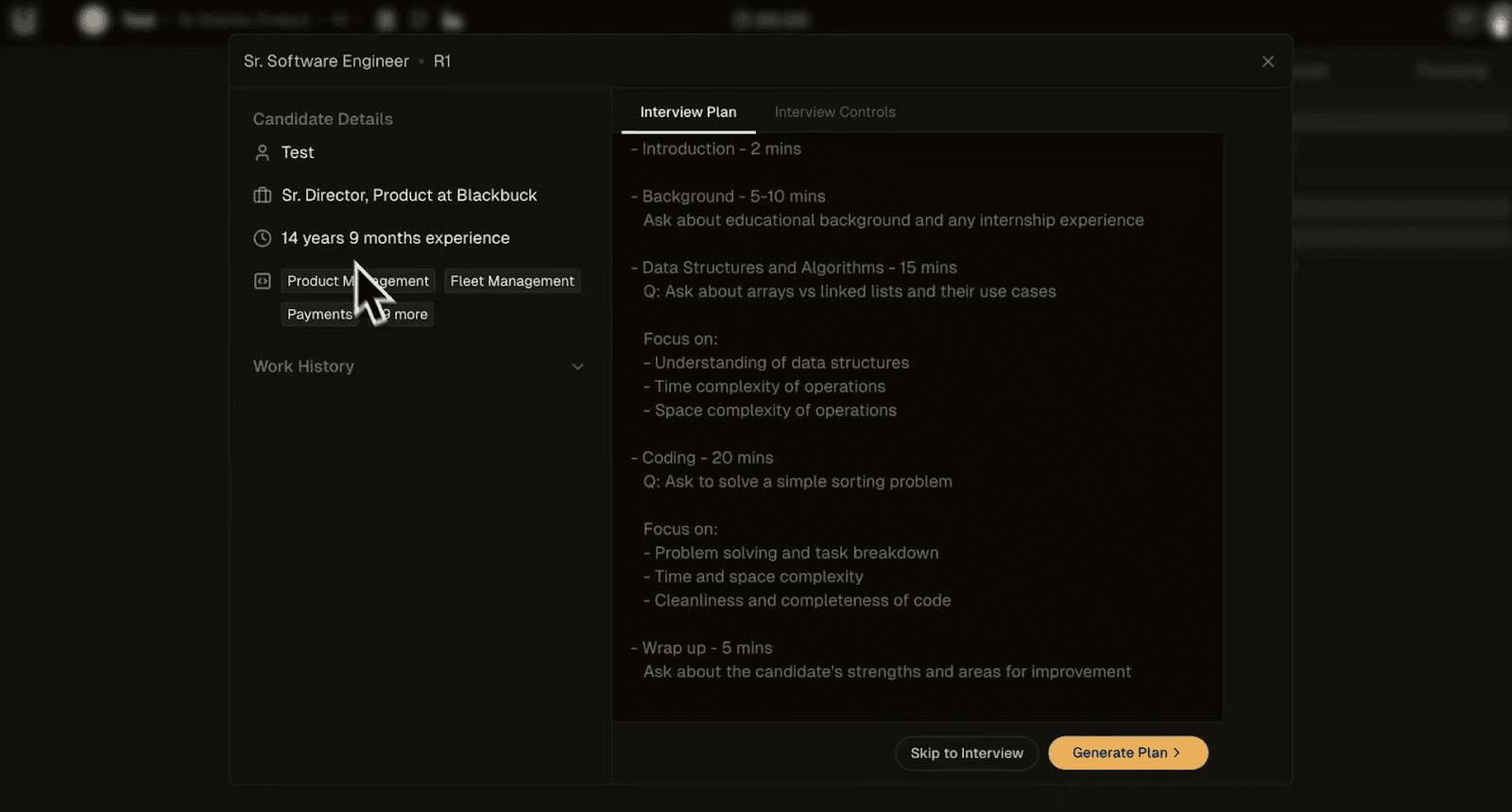
Interview agenda with candidate details
Candidate details
The left panel shows candidate information:
Name and current role
Years of experience
Skills and expertise areas
Work history (expandable)
Skip to interview
If you're in a hurry or prefer to run an unstructured interview, click "Skip to Interview" to bypass the planning step.
Review interview plan
The default interview plan includes suggested questions and focus areas for the interview. This can be edited to:
Adjust time allocations for each section
Add or remove topics
Modify suggested questions
Reorder interview sections
Generate custom plan
Click "Generate Plan" to create a customized interview agenda based on the candidate's profile and role requirements.
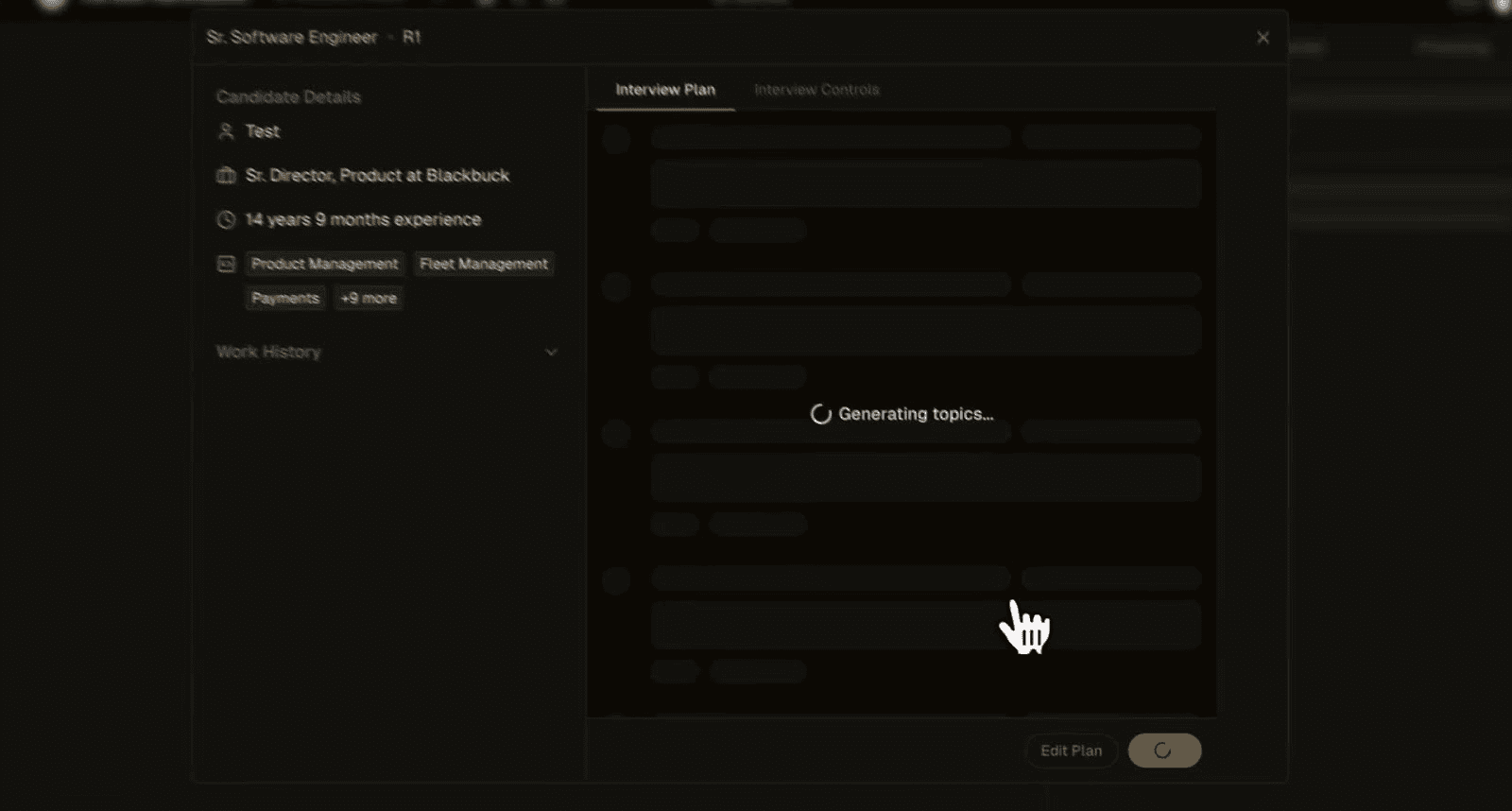
Generating custom interview plan
The system analyzes candidate details and generates tailored topics, questions, and time allocations. This takes a few seconds.
Interview Controls (optional)
Configure code editor settings before starting. This is optional - skip if you want to use defaults.
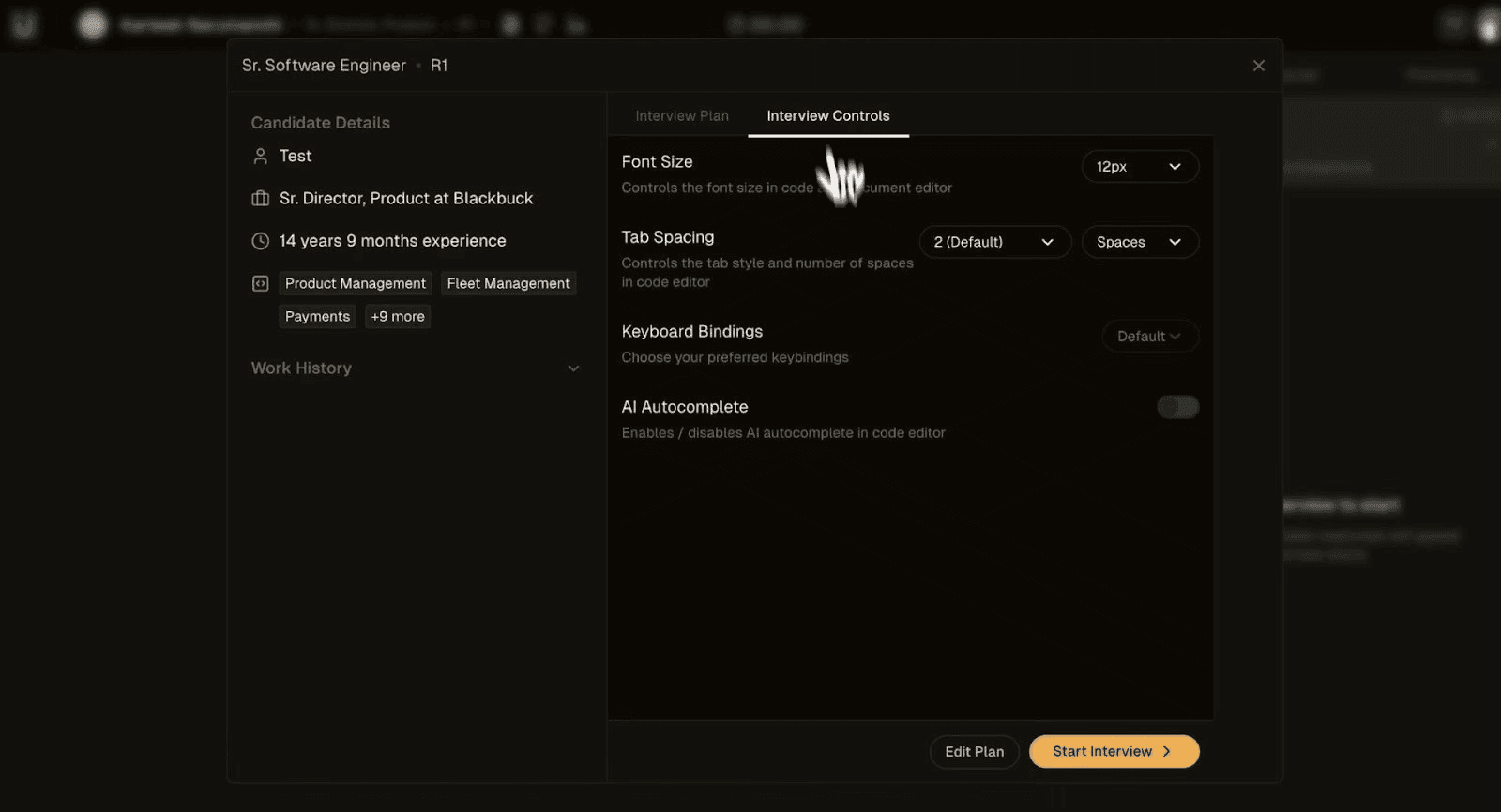
Interview controls and code editor settings
Available settings
Font Size: Adjust code editor font size (default: 12px)
Tab Spacing: Set tab width and choose tabs or spaces (default: 2 spaces)
Keyboard Bindings: Coming up soon
AI Autocomplete: Coming up soon
These settings apply to the candidate's code editor during the interview.
Entering the Room
After configuring settings (or skipping), click "Start Interview" to enter the interview room.
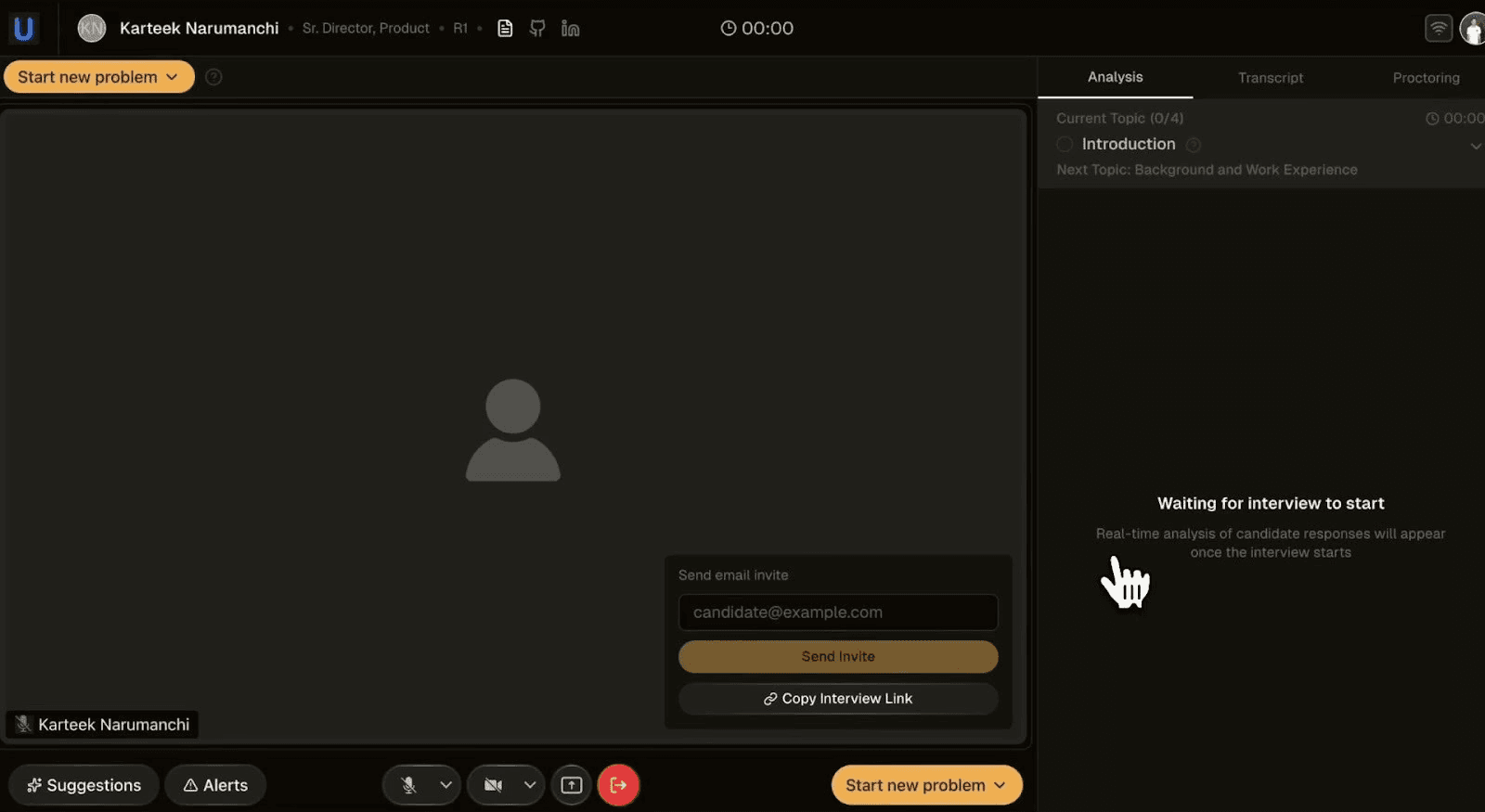
Interview room with candidate invite panel
What you'll see
When you enter the room:
Timer starts at 00:00
Analysis panel appears on the right
Interview agenda shows current topic (e.g., Introduction)
Candidate invite panel appears in the center
Note: The message "Waiting for interview to start" indicates Shadow Interviewer will begin once the candidate joins.
Inviting the Candidate (optional)
Candidate can join in via the link on their calendar invite. In case you need to invite the candidate to join the interview. There are two methods:
Method 1: Send email invite
Enter the candidate's email address
Click "Send Invite"
Candidate receives an email with a join link
Method 2: Share interview link
Click "Copy Interview Link"
Share the link with the candidate via your preferred channel (Slack, calendar invite, etc.)
When candidate joins
Once the candidate clicks the link, they enter their own lobby to set up audio/video. Post that, when they ask to join the interview, you will receive a notiication to allow them into the room
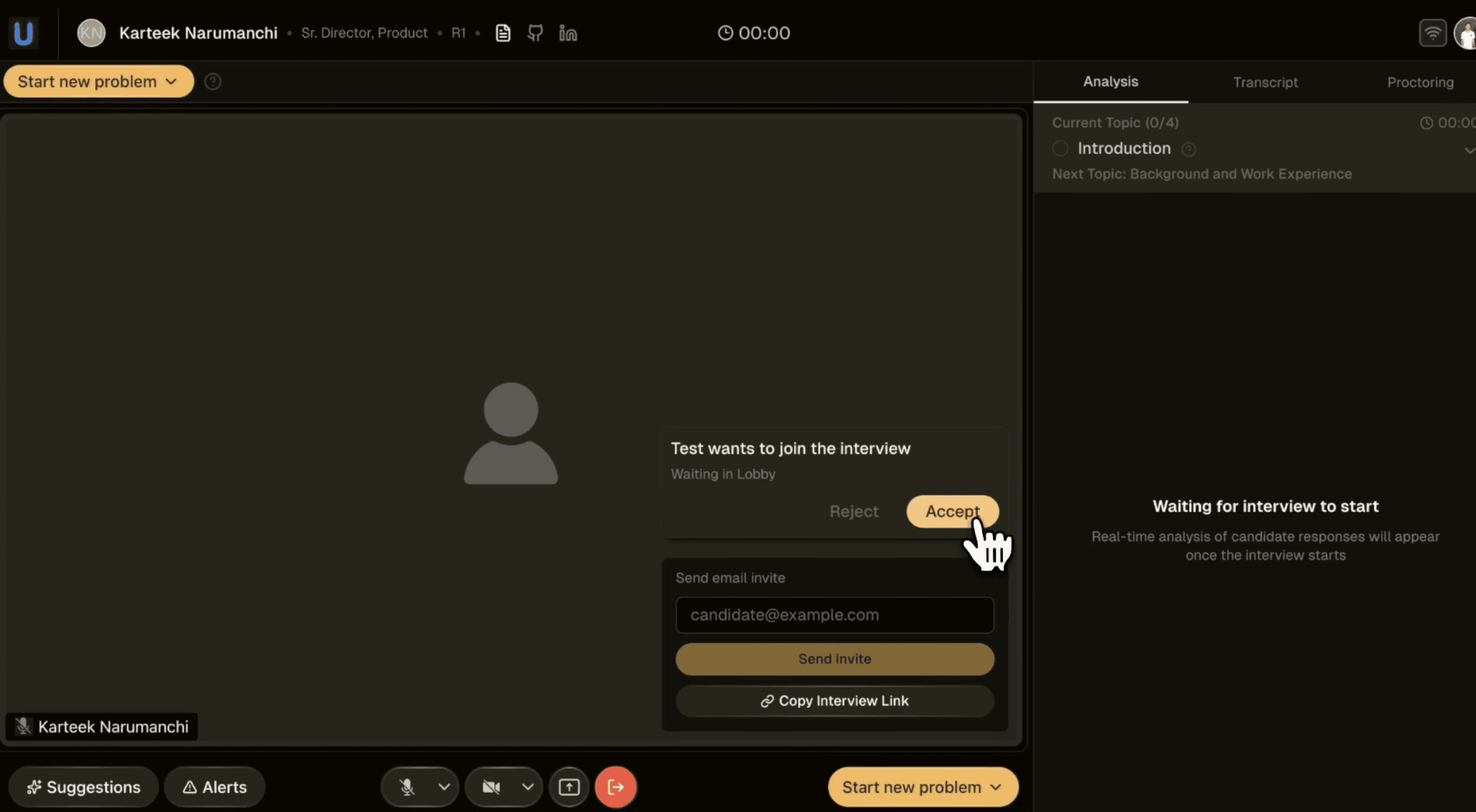
Once candidate joins the room
You'll see their video feed appear
Shadow Interviewer analysis activates
Interview officially begins
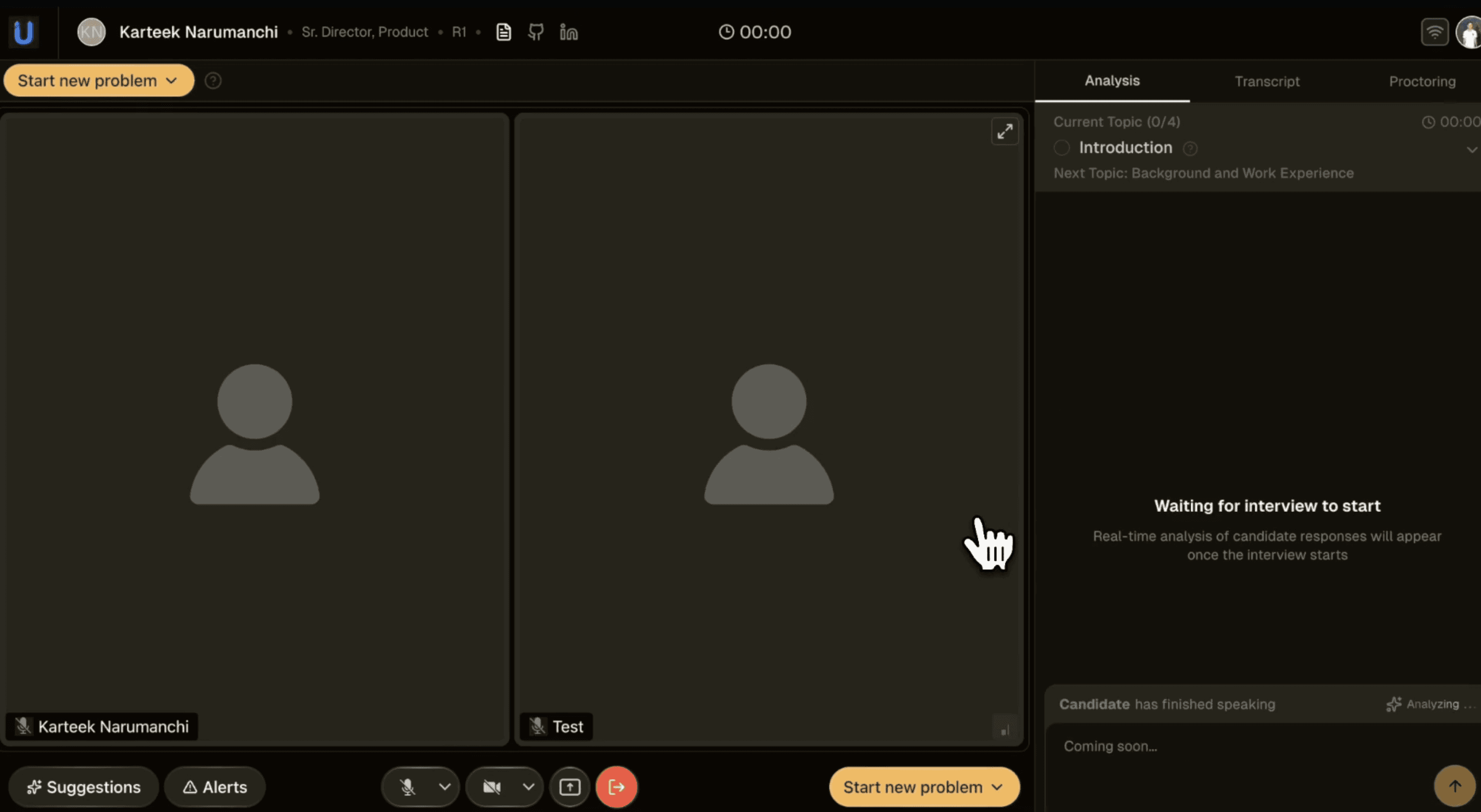
You can check out this video to see the demo:

Get started with Fairground in just few mins.
Plug and Play. Works well with your existing ATS.
100 Free Credits